How to Batch Convert 50 Images at Once in 2026 (No Upload)
Batch convert 50 images to WebP, AVIF, JPG, or PNG at once, entirely in your browser — no upload, no sign-up, and your files never leave your device.
How to Batch Convert 50 Images at Once in 2026 (No Upload)
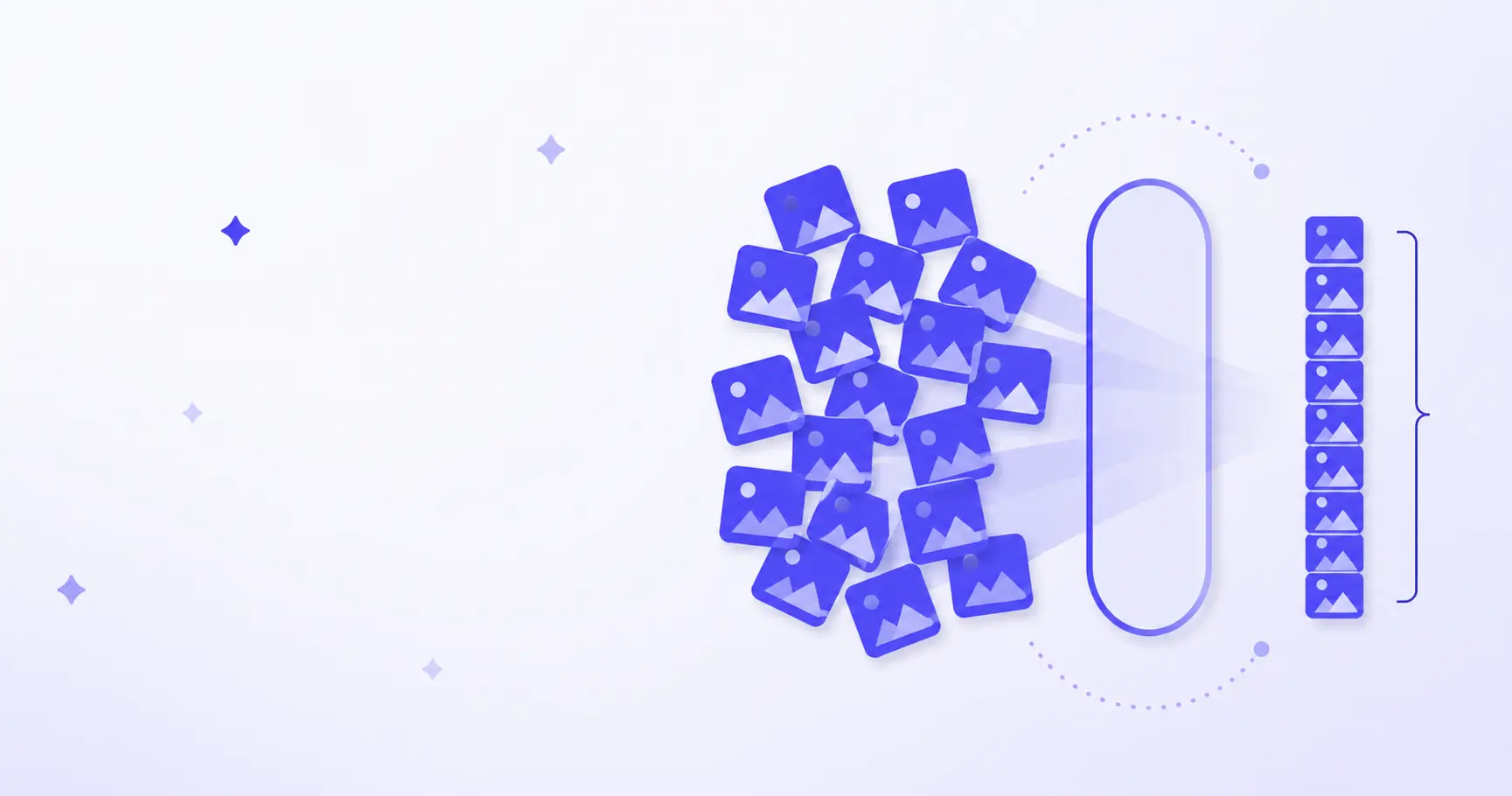
You exported 50 screenshots, or a client dropped a folder of PNGs, and now every one needs to be a WebP. Converting them one at a time through an upload-download tool is tedious and leaks every file to a stranger's server. You can batch convert images far faster in your own browser — no upload, no sign-up, and the files never leave your machine. Here's exactly how, plus what's happening under the hood.
TL;DR
- Drop a folder into a browser-based converter and convert all 50 images in one pass.
- Browser-only tools never upload your files — the conversion runs on your CPU.
- Pick WebP for the web, AVIF for the smallest files, PNG only for lossless transparency.
- The browser decodes with
createImageBitmap()and re-encodes withcanvas.toBlob(). - Download everything as a single ZIP instead of 50 separate clicks.
How to batch convert 50 images at once without uploading them
The whole job is three steps and takes longer to read than to run. Open the iKit Image Format Converter, and you're done before a server tool would have finished uploading.
Step 1: select the whole batch
Drag your folder onto the drop zone, or use the file picker and select all 50 files at once. The tool reads them directly off disk — there's no upload progress bar because there's no upload. On a modern browser you can also use the File System Access API's directory picker, which hands the page a handle to the folder so output can be written straight back. If the batch also needs resizing to a fixed dimension, the iKit Image Resizer handles that in the same browser-only way.
Step 2: choose one output format and quality
Pick a single target format for the whole batch — WebP, AVIF, JPG, or PNG — and a quality level if the format is lossy. For lossy formats the quality value is a number between 0 and 1, where higher means a larger, sharper file. A quality of around 0.8 is a sensible default for photos headed to the web.
Step 3: download the batch as a ZIP
Rather than triggering 50 downloads, a good batch tool bundles the results into one ZIP archive built in memory. One click, one file, done. If you'd rather understand the ZIP step in detail, we wrote a whole walkthrough on compressing a folder of images into one ZIP.
Why browser-only batch conversion beats uploading to a server
"Online image converter" usually means "upload your files to my server." That model has three costs you pay every time, and a browser-only tool eliminates all of them.
Privacy: your files never leave your device
This is the big one. When a tool converts images locally, the raw bytes are read from your disk, transformed in memory, and written back — they never travel across the network. For screenshots of dashboards, scanned documents, medical images, or client work under NDA, that's not a nice-to-have; it's the difference between a legal workflow and a data leak. The browser even enforces this at the API level: a canvas tainted by cross-origin pixels throws a SecurityError rather than letting script read it back.
Speed: no upload-download round trip
A server converter spends most of its wall-clock time moving bytes, not converting them. Uploading 50 photos at a few megabytes each over a typical connection can take a minute before any work starts, then you wait again for the download. A browser tool skips both legs. The only thing it spends time on is the actual decode-and-encode, which native browser code does quickly.
Cost: free, no sign-up, no watermark
Because there's no server doing the compute, there's no per-image cost to pass on to you. No account, no daily limit, no watermark stamped across the output. The work happens on hardware you already own.
How does in-browser image conversion actually work
There's no magic here — just three browser APIs that have been stable for years. Understanding them tells you why the batch is fast and where the limits are.
Decoding the source with createImageBitmap()
The first step is turning a compressed file (a JPG, PNG, or HEIC) back into raw pixels. createImageBitmap() does this and returns a Promise that resolves to an ImageBitmap. It accepts useful options: imageOrientation: "from-image" honors a photo's EXIF orientation tag (the default), and resizeWidth / resizeHeight let you downscale during decode. Per MDN's createImageBitmap reference, the default from-image value means the bitmap is oriented according to EXIF metadata if present — which is why phone photos don't come out sideways when the tool gets this right.
Re-encoding with canvas.toBlob()
Once the pixels are on a canvas, HTMLCanvasElement.toBlob() encodes them into the target format. According to MDN's toBlob documentation, browsers are required to support image/png, and many also support image/jpeg and image/webp; if you request a format the browser can't produce, it silently falls back to PNG. The method takes an optional quality argument between 0 and 1 for lossy formats. This API has been Baseline-stable across browsers since January 2020, so it works everywhere that matters.
// Decode one source file, re-encode as WebP at 80%
const bitmap = await createImageBitmap(file, {
  imageOrientation: "from-image",
});

const canvas = document.createElement("canvas");
canvas.width = bitmap.width;
canvas.height = bitmap.height;
canvas.getContext("2d").drawImage(bitmap, 0, 0);

canvas.toBlob(
  (blob) => saveToZip(blob),
  "image/webp",
  0.8,
);
Keeping the UI responsive with OffscreenCanvas
Encode 50 images on the main thread and the page freezes — scrolling stutters, buttons stop responding. The fix is OffscreenCanvas, which can run inside a Web Worker so the heavy decode-and-encode happens off the main thread. It exposes convertToBlob(), which returns a Promise instead of using a callback, making it clean to await in a worker loop. OffscreenCanvas has been Baseline-available across browsers since March 2023.
// Inside a Web Worker
const bitmap = await createImageBitmap(file);
const off = new OffscreenCanvas(bitmap.width, bitmap.height);
off.getContext("2d").drawImage(bitmap, 0, 0);

const blob = await off.convertToBlob({
  type: "image/avif",
  quality: 0.7,
});
postMessage(blob);
Which output format should you batch convert to
Picking a target format is the one decision that actually matters for file size and compatibility. Here's the short version.
WebP for almost everything on the web
WebP is the safe default for web images in 2026: supported in every current browser and typically 25–35% smaller than an equivalent-quality JPG, with optional transparency. If you're batch-converting assets for a website and want one answer, this is it.
AVIF for maximum compression
AVIF usually beats WebP on file size, especially for photographic content, at the cost of slower encoding. For a 50-image batch the extra encode time is noticeable but rarely a dealbreaker. We compared the two head-to-head in WebP vs AVIF encoding if you want the numbers.
JPG and PNG when compatibility or transparency wins
Keep JPG when a file has to open everywhere, including old software that never learned WebP. Keep PNG only when you need lossless quality or transparency — converting a transparent PNG to JPG flattens the alpha channel and often gives you a black background. If your goal is smaller files rather than a format change, the iKit Image Compressor shrinks a batch without re-encoding the format.
Here's the quick comparison:
| Format | Best for | Transparency |
|---|---|---|
| WebP | Web images, the default | Yes |
| AVIF | Smallest files, photos | Yes |
| JPG | Maximum compatibility | No |
| PNG | Lossless, line art | Yes |
A rough decision list for a batch:
- Converting screenshots or UI assets for a site → WebP.
- Squeezing the last kilobytes out of hero photos → AVIF.
- Sending to someone on unknown software → JPG.
- Logos, icons, or anything needing transparency → keep PNG or use WebP.
Common batch conversion problems and how to fix them
A few things trip people up when converting many files at once. None of them are hard once you know the cause.
Why your converted JPG has a black background
JPG has no alpha channel. When you convert a transparent PNG straight to JPG, the transparent pixels usually fill with black. The fix is to draw a white (or any solid) rectangle onto the canvas before drawing the image, or to convert to a format that keeps transparency like WebP or AVIF.
Why batch conversion feels slow on 50 images
If the whole tab locks up, the work is running on the main thread. Moving encoding into a Web Worker with OffscreenCanvas keeps the interface smooth and lets the browser use multiple cores across several workers. AVIF also encodes meaningfully slower than WebP, so a sluggish batch is sometimes just the format you chose.
EXIF orientation: why some photos come out sideways
Phone cameras often store the image upright but tag it with a rotation in EXIF. If the converter ignores that tag, portrait photos land on their side. Decoding with createImageBitmap(file, { imageOrientation: "from-image" }) tells the browser to apply the EXIF rotation, so the batch comes out the right way up.
References
- HTMLCanvasElement: toBlob() method — MDN — encoding canvas pixels to a Blob, format fallback rules, quality parameter, and the SecurityError on tainted canvases.
- OffscreenCanvas: convertToBlob() method — MDN — promise-based encoding in a worker and supported output formats.
- Window: createImageBitmap() method — MDN — decode options including imageOrientation and resizeWidth used in the code samples.
- Window: showDirectoryPicker() method — MDN — selecting a folder and writing output back via the File System Access API.
- The File System Access API — Chrome for Developers — directory handles, readwrite mode, and createWritable for saving converted files.
Related on iKit
- Convert images to AVIF — and when AVIF actually beats WebP — picking the right target format before you run a whole batch.
- WebP vs AVIF encoding: browser support, size, and speed — the head-to-head that explains why AVIF batches encode slower.
- PNG vs JPG vs WebP vs AVIF: which should you use in 2026 — the full format-selection guide behind the comparison table above.
- How to convert JPG to PNG (and when you shouldn't) — the reverse direction, and when lossless is worth the bigger file.
- Convert PNG to WebP and cut image size by 30% — the single most common conversion in a web batch.
- Convert PNG to JPG without a black background — the transparency-flattening fix referenced above.
- Why your converted JPG is bigger than the PNG — when a "conversion" makes files larger, and why.
- How to compress 20 images to a ZIP in 30 seconds — the batch-plus-ZIP workflow that pairs with format conversion.
Related posts
Web Audio API Beep: Build a Browser Alarm Sound (2026)
A Web Audio API beep needs no audio file. One oscillator, one gain node and five lines of JavaScript give any timer an alarm that never fails to load.
Excel to JSON in the Browser: No Server Needed (2026)
Excel to JSON does not require uploading your spreadsheet anywhere. Here is the browser-only workflow, plus the date and precision traps that corrupt data.
How to Find a Single Typo in a 5,000-Line File (2026)
Find a single typo in a large file fast: use a word- and character-level diff to pinpoint the one changed character instead of scanning 5,000 lines.