Convert PNG to WebP and Cut Image Size by 30% (2026)
Convert PNG to WebP to cut image size by roughly 30% with no visible quality loss. A 2026 guide to lossless vs lossy, the Canvas API, and browser support.
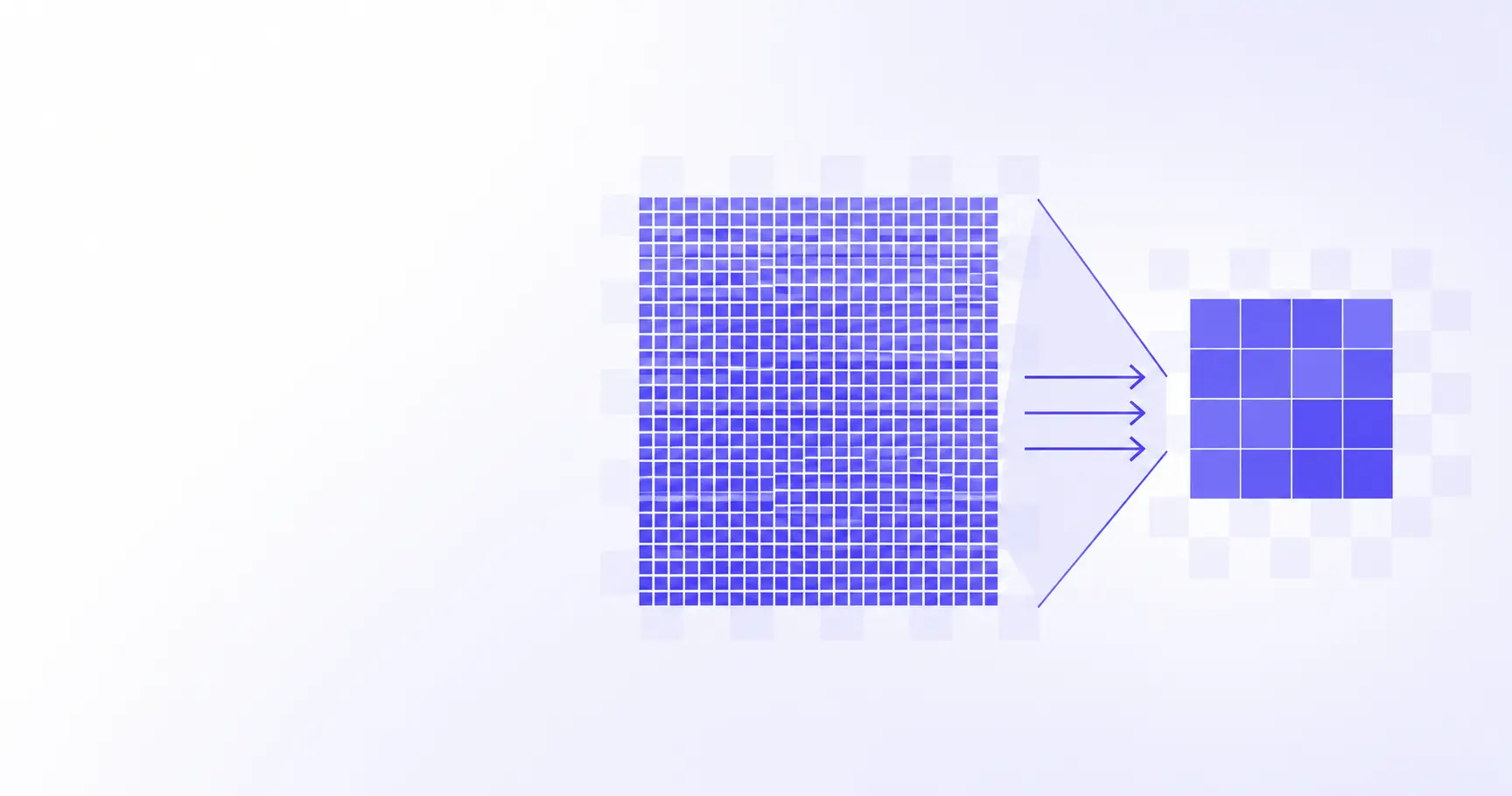
Convert PNG to WebP and Cut Image Size by 30%
You have a folder of PNG screenshots and logos bloating your page weight, and you keep reading that WebP fixes it. It usually does: Google's own measurements put WebP at about 30% smaller than PNG at equivalent quality. This guide shows how to convert PNG to WebP three ways — in the browser, with the Canvas API, and on the command line — and explains when lossless beats lossy so you don't trade size for a fuzzy logo.
TL;DR
- WebP is roughly 30% smaller than PNG at equal quality; transparent images save 60–70%.
- Use lossless WebP for logos, icons, and screenshots — pixels stay exact.
- Use lossy WebP (quality ~80) for photographic PNGs to shrink them hard.
- WebP has ~97% browser support in 2026; a
<picture>fallback is now optional. - Convert locally with iKit or the Canvas API — no upload, no quality surprises.
How to convert PNG to WebP in your browser
There's no single "right" tool — the best method depends on whether you're converting one image, automating a build, or scripting a batch. All three below produce the same WebP bitstream; they differ only in where the work runs.
Convert PNG to WebP with iKit (no upload)
The fastest path for a one-off file is a browser tool that does the encoding locally. Open the Image Format Converter, drop in your PNG, choose WebP as the output, and set a quality level. Because the conversion runs in your browser's Canvas engine, the PNG never leaves your machine — useful when the image is a product mockup, an internal dashboard screenshot, or anything you'd rather not hand to a server.
For a batch of images you want to ship together, pair it with the Image Compressor, which handles JPG, PNG, and WebP in bulk and can zip the results.
Convert PNG to WebP with the Canvas API
If you're building your own pipeline, the browser already ships a WebP encoder. Draw the PNG onto a <canvas>, then export it with toBlob() using the image/webp MIME type. Per MDN, the third argument is a quality number between 0 and 1 that applies to lossy formats like WebP and JPEG:
async function pngToWebp(file, quality = 0.8) {
  const bitmap = await createImageBitmap(file);
  const canvas = document.createElement("canvas");
  canvas.width = bitmap.width;
  canvas.height = bitmap.height;
  canvas.getContext("2d").drawImage(bitmap, 0, 0);
  return new Promise((resolve) =>
    canvas.toBlob(resolve, "image/webp", quality)
  );
}
One caveat: omit the quality argument (or pass a value the browser treats as lossless intent) and behavior varies by engine. For predictable lossless output, prefer a dedicated encoder like cwebp below.
Convert PNG to WebP on the command line (cwebp)
For build scripts and CI, Google's reference cwebp encoder gives you the most control. Lossless mode preserves every pixel; the -q flag drives lossy quality:
# Lossless — exact pixels, smaller file
cwebp -lossless logo.png -o logo.webp

# Lossy at quality 80 — for photographic PNGs
cwebp -q 80 photo.png -o photo.webp
Wire that into a loop or a Makefile and you can re-encode an entire assets/ directory in seconds.
How much smaller is WebP than PNG?
The headline number gets quoted loosely, so it's worth separating the cases. The savings depend heavily on whether the image is flat artwork, a photo, or transparent.
Lossless WebP: about 26% smaller than PNG
For pixel-exact output, the relevant figure comes from Google's WebP Lossless and Alpha Study: lossless WebP images are roughly 26% smaller than equivalent PNGs. That gap widens for images with limited color palettes — icons, flat-design UI, simple logos — because WebP's color-indexing transform packs few-color images extremely tightly. You give up nothing visually; you're just using a better container for the same pixels.
Lossy WebP with transparency: 60–70% smaller
The biggest win is a mode PNG can't touch. WebP can encode RGB lossily while keeping the alpha channel lossless — a combination, in Google's words, "not available today with any of the existing image formats." Replacing a transparent PNG with lossy-plus-alpha WebP saves 60–70% on average. For icon-heavy interfaces, that's often the difference between a snappy page and a sluggish one.
A before-and-after size table
Rough expectations when converting from PNG, drawn from Google's published studies:
| Source image | WebP mode | Typical size cut |
|---|---|---|
| Flat logo / icon | Lossless | 26%+ |
| UI screenshot | Lossless | 20–30% |
| Transparent overlay | Lossy + alpha | 60–70% |
| Photo saved as PNG | Lossy q80 | 50–70% |
Treat these as starting points, not guarantees — your mileage varies with image content. Always eyeball the output before shipping.
Lossless vs lossy WebP: which mode for which image
Picking the wrong mode is the single most common conversion mistake. The rule of thumb: match the mode to what the image is, not to how small you wish it were.
When to keep it lossless
Use lossless WebP whenever sharp edges and exact color matter: logos, icons, line art, charts, diagrams, and UI screenshots with text. PNG was lossless by design, so a lossy re-encode can introduce ringing around crisp edges and muddy 1px borders. Lossless WebP gives you the size win with zero visual risk.
When lossy WebP is safe
If your PNG is really a photograph — someone exported a camera image as PNG "to keep quality" — lossy WebP is the right call. Photographic detail hides compression artifacts well, and at quality 80 most viewers can't tell the difference while the file drops by half or more. WebP's lossy path is built on VP8 block prediction and arithmetic coding, which is why it beats JPEG at the same quality.
The quality slider explained
The quality value (0–1 in the Canvas API, 0–100 in cwebp) controls how aggressively the encoder quantizes detail in lossy mode. It does nothing in lossless mode. A few practical anchors:
- 90–100: near-transparent quality, larger files — use for hero images.
- 75–85: the sweet spot for most photos; tiny files, no visible loss.
- Below 60: visible blocking and smearing — avoid for anything important.
Does WebP still need a fallback in 2026?
For years the answer was "yes, always." In 2026 it's "usually no" — which simplifies your markup considerably.
WebP browser support in 2026
WebP now sits at roughly 97% global support. Chrome, Firefox, Edge, and Opera have shipped it for the better part of a decade, and Safari added WebP in version 14, released alongside macOS Big Sur and iOS 14 in September 2020. You can confirm the current numbers on Can I Use. The only meaningful holdouts are Safari 13 and older on legacy macOS — a shrinking sliver of traffic.
Using <picture> for older browsers
If you do serve a long-tail audience, the <picture> element lets the browser choose the first format it understands and fall back gracefully:
<picture>
  <source srcset="hero.webp" type="image/webp">
  <img src="hero.png" alt="Product hero">
</picture>
Browsers that grok WebP load the small file; everyone else gets the PNG. No JavaScript, no user-agent sniffing.
When you can drop the fallback
For an internal tool, a dashboard, or any audience on modern browsers, you can serve WebP directly and skip the <picture> wrapper entirely. Check your own analytics: if Safari 13 and IE are statistical noise in your traffic, the fallback is dead weight.
Common PNG to WebP conversion mistakes
A clean conversion is mostly about avoiding a few predictable traps.
Re-encoding an already-lossy image
If your "PNG" was created by exporting a JPEG, you've already lost detail. Running it through lossy WebP stacks a second round of artifacts on the first. When in doubt, convert from the most original source you have, and prefer lossless for anything that's been edited repeatedly.
Losing transparency
A converter that flattens alpha onto a white (or black) background will silently ruin transparent logos. This is the same failure that turns transparent PNGs black when mishandled. Confirm your tool keeps the alpha channel — WebP supports it fully, so there's no excuse to lose it.
Forgetting to strip metadata
PNGs can carry color profiles and ancillary chunks; photos exported as PNG may carry EXIF. Re-encoding to WebP is a natural moment to drop anything you don't need, shaving extra bytes and removing data you may not want to publish. If you also need to change dimensions, do it in the same pass with the Image Resizer rather than re-saving twice.
References
- Compression Techniques | WebP | Google for Developers — primary source for the ~30% smaller figure, lossy/lossless internals, and the 60–70% transparent-image saving.
- HTMLCanvasElement: toBlob() method | MDN — the in-browser WebP encoding API and its quality parameter.
- WebP image format | Can I use — 2026 browser-support data, including Safari's version-14 cutoff.
- WebP Lossless and Alpha Study | Google for Developers — source for the 26%-smaller-than-PNG lossless figure.
Related on iKit
- PNG vs JPG vs WebP vs AVIF: which format to actually use — the bigger-picture format decision before you commit to WebP for a given image.
- How to convert JPG to PNG (and when you shouldn't) — the reverse trip, and why going lossy→lossless rarely buys you anything.
- Convert PNG to JPG without a black background — how alpha flattening goes wrong, the same trap to avoid when targeting WebP.
- How to compress PNG images without losing quality — if you'd rather stay on PNG, how to shrink it losslessly first.
- Compress 20 images to a ZIP in 30 seconds — batch-process a whole folder of images, browser-only, no upload.
Related posts
How to Test a Regex Pattern Online in 30 Seconds (2026)
Learn how to test a regex pattern online without writing code: paste, highlight, and debug matches, plus why the same regex passes in Python but fails in JS.
Convert a Date to Unix Timestamp: Bash, Python, JS, SQL (2026)
Convert any date to a Unix timestamp in Bash, Python, JavaScript, and SQL with copy-paste one-liners — plus the timezone trap each language hides.
Compare Logs Across UTC, PST, and JST in One View (2026)
Learn how to compare logs across UTC, PST, and JST in one view: normalize to Unix time, then convert cleanly with IANA zone names and ISO 8601.