How to Format Ugly JSON in 2026 — 3 Methods Compared
Three ways to format ugly JSON — IDE plugins, CLI tools like jq, and privacy-first browser formatters — compared on speed, privacy, and ergonomics.
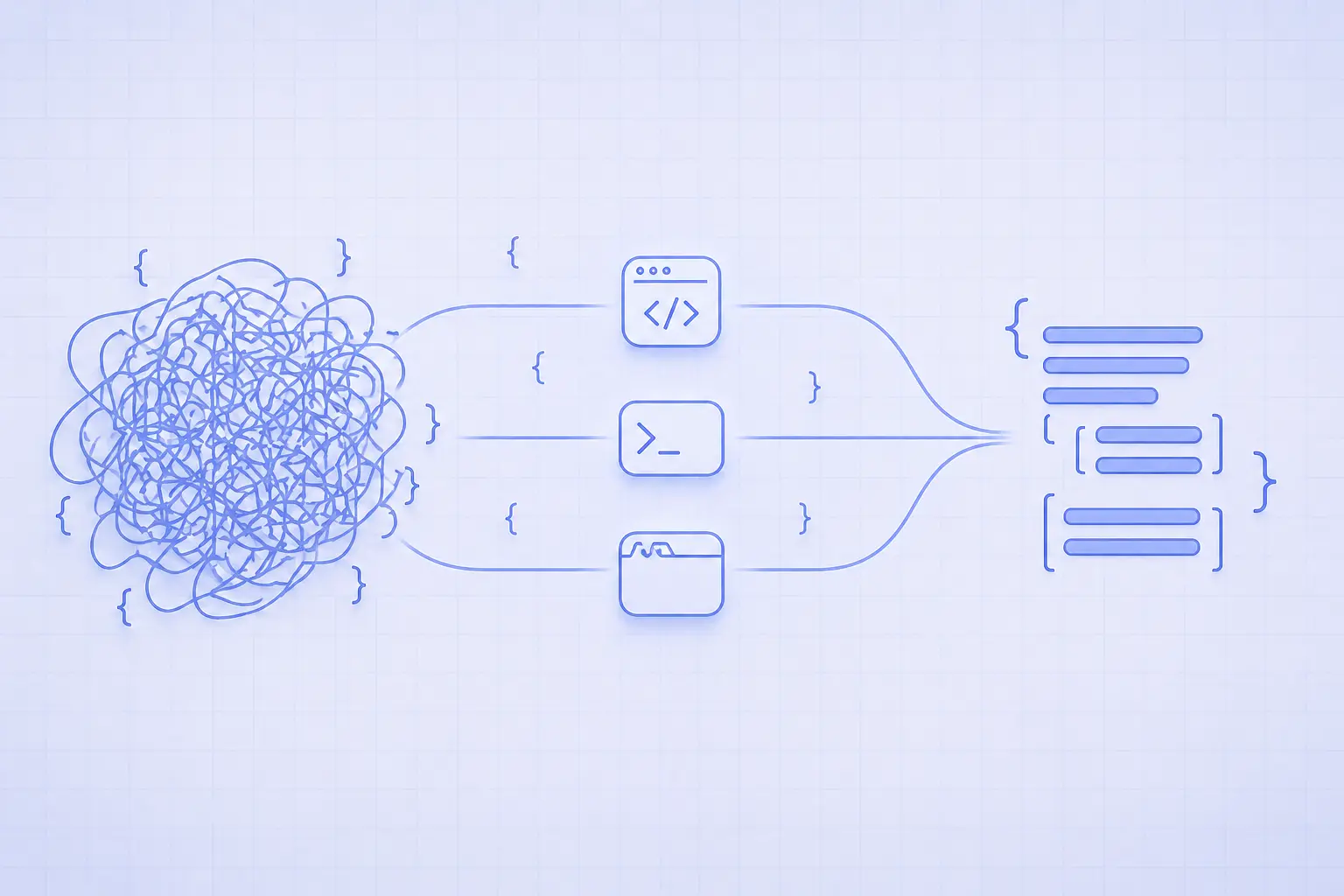
How to Format Ugly JSON in 2026 — 3 Methods Compared
You opened a log file, a curl response, or a webhook payload, and got back a 4,000-character single-line blob with no indentation. Your eyes can't parse it, your editor folded it, and a syntax error is hiding somewhere in the middle. This guide compares the three serious ways developers format ugly JSON in 2026 — IDE plugins, command-line tools like jq, and zero-upload browser formatters — and ends with a clear answer to "which one should I use, and when?"
What "ugly JSON" actually means
JSON is whitespace-insensitive. As long as the bytes parse, a JSON document with no newlines is just as valid as one with two-space indentation — the JSON grammar treats the two identically. Production systems strip whitespace because every byte over the wire costs latency and bandwidth, but the result is unreadable to humans.
Minified JSON: stripped whitespace
The most common case is a single line where every key, value, and brace is jammed together. Minified JSON cuts payload size by 10–20% over indented output, which matters on mobile networks and at scale. APIs from Stripe, GitHub, and AWS all return minified JSON by default. You only see the structure when you reformat it locally.
Stringified-and-escaped JSON
The second case is JSON that has been embedded inside another JSON string — typically because someone called JSON.stringify on an object and then put the result into a message field. You end up with backslash-escaped quotes ({\"name\":\"alice\"}) wrapped in another set of quotes. Formatting this means unescaping before pretty-printing, which most generic formatters won't do automatically.
Logs with JSON in the middle
The third case is structured logs: a line of plaintext metadata followed by a JSON blob, sometimes with ANSI color codes mixed in. You want to extract just the JSON, format it, and ignore the surrounding noise. This is where command-line tools shine, because regex extraction and pretty-printing chain naturally on a Unix pipe.
Method 1 — Format JSON in your IDE
Modern editors all ship a JSON formatter. The friction is zero if you're already in the editor and the file is on disk — but it rises sharply for paste-and-format workflows.
VS Code, Cursor, and JetBrains
VS Code formats JSON natively via Shift+Alt+F on Windows/Linux or Shift+Option+F on macOS. Cursor inherits the same shortcut. JetBrains IDEs (WebStorm, IntelliJ, PyCharm) use Ctrl+Alt+L / Cmd+Option+L. All three respect .editorconfig for indent width and final newline behavior, so the formatted output matches whatever the rest of the project uses.
For paste-only formatting, open a scratch file with Ctrl+N, set the language to JSON via the bottom-right status bar, paste the blob, then run the format command. Three steps, but it works without leaving the editor.
Schema validation and inline errors
The main upside is integration. Your IDE already knows your indentation preference, your shortcuts, and (with extensions like JSON Schema or the bundled language server) the schema your file should conform to. Errors are highlighted inline, hover gives type hints, and Git integration shows a clean diff once the file is saved.
Where the IDE approach hurts
Editors choke on large JSON. VS Code's default json.maxItemsComputed is 5,000 — past that you lose folding, IntelliSense, and outlining. Anything over 50 MB is painful. The bigger problem is paste-and-go workflows: opening a scratch buffer for every webhook payload becomes annoying when you do it a dozen times an hour.
Method 2 — Format JSON from the command line
When the source is a file, a curl response, or a log stream, the command line wins. Two tools cover roughly 95% of cases.
jq for power users
jq is a streaming JSON processor that pretty-prints by default. Pipe any JSON into it and you get colorized, indented output:
# Format an API response inline
curl -s https://api.github.com/repos/jqlang/jq | jq

# Format a file in place (write back with sponge or a temp file)
jq . payload.json > payload.formatted.json

# Compact mode — the inverse, used to minify pretty JSON before sending
jq -c . payload.json
jq also lets you query and transform: jq '.items[].name' data.json extracts just the name fields. For the formatting use case alone, . (the identity filter) is all you need. It's available via brew install jq, apt install jq, winget install jqlang.jq, or as a single static binary you can drop into a Docker image.
python -m json.tool — universal fallback
If jq isn't installed, every machine with Python 3 has a working JSON pretty-printer baked in:
echo '{"name":"alice","age":30,"tags":["admin","beta"]}' | python3 -m json.tool

# Output:
# {
#     "name": "alice",
#     "age": 30,
#     "tags": [
#         "admin",
#         "beta"
#     ]
# }
It's slower than jq and lacks color, but it has zero install friction in CI containers, locked-down servers, and minimal Alpine images.
When CLI wins
Use the command line when (a) the JSON is already in a file or stream, (b) you need to chain formatting with other transforms (grep, awk, sed), or (c) you're scripting a CI step or a git hook. CLI tools also handle multi-gigabyte files via streaming, where editors and browsers run out of memory and give up.
Method 3 — Format JSON in a privacy-first browser tool
For paste-and-go workflows — copying a webhook payload from a browser console, sharing a snippet with a teammate, or debugging a stranger's API — a browser tool is the fastest path. The catch is that "free online JSON formatter" is also where the security model varies the most.
Why client-side matters
Most of the top-ranking online JSON formatters silently send your JSON to a remote server. That's fine for public data, but JSON debugging is exactly the workflow where secrets leak: API keys, JWT tokens, internal user IDs, customer email addresses, payment metadata, signed URLs. Pasting a webhook into a server-side formatter is functionally identical to pasting it into Pastebin.
A privacy-first formatter like the iKit JSON Decoder runs entirely in the browser — the JSON never touches a server, never appears in a request log, and disappears when you close the tab. The same design choice applies to other iKit tools like the Base64 Encoder and the Hash Generator, where input is often sensitive by definition.
Speed and readability features
A purpose-built JSON tool typically beats a generic editor on three dimensions. It has a one-click "format" that handles minified, stringified, and embedded JSON without a separate unescape step. It supports collapsible nodes, so you can drill into deeply nested objects without losing place. And it points at the exact line and column of a syntax error — a feature that the browser's built-in JSON.parse does not give you cleanly:
try {
  JSON.parse(input);
} catch (e) {
  // "Unexpected token } in JSON at position 142"
  // — useful, but you still need to count to position 142 yourself.
}
For the underlying parser semantics, see MDN's JSON.parse documentation and the ECMA grammar referenced in RFC 8259.
Where browser tools fall short
The trade-off is platform: a browser tool needs a browser, won't run inside an SSH session, and can't process a file you haven't loaded. For a designer skimming an API response, that's a non-issue. For a backend engineer triaging a 4 GB log file on a remote server, it's a dealbreaker.
Side-by-side comparison
Here's how the three methods compare on the dimensions that actually matter day to day:
| Dimension | IDE plugin | Command line (jq) |
Browser formatter |
|---|---|---|---|
| Speed for paste-and-go | Medium (3 steps) | Slow (terminal + paste) | Fast (1 paste) |
| Speed on huge files | Slow (>50 MB hangs) | Fast (streaming) | Medium (browser memory) |
| Privacy posture | Local-only | Local-only | Depends on tool |
| Setup friction | Already installed | One install | Zero |
| Works offline | Yes | Yes | Most do (after first load) |
| Handles invalid JSON | Highlights error | Errors out at line | Pinpoints error |
| Best for | Files in a project | CI / large files / streams | Webhooks, snippets, sharing |
Speed and scalability
jq handles streaming JSON in the gigabyte range without breaking a sweat — it processes documents lazily and never loads the whole tree into memory unless you ask it to. Browser formatters are bounded by the JS heap, which on most machines means you'll hit a wall somewhere between 50 MB and 200 MB. IDEs sit in the middle but degrade quickly past their maxItemsComputed threshold.
Privacy and trust
For non-sensitive data the privacy axis is irrelevant. For anything containing tokens, PII, or internal identifiers, only local methods (IDE, CLI) or a verified client-side browser tool are safe. "Verified" here means you can open the network tab, paste your JSON, and confirm zero outbound requests happen.
Setup and workflow fit
Your IDE is already running, so its zero-cost. jq is one brew install away and pays back the install cost on the first large file. Browser tools win when the JSON is already in your clipboard from somewhere outside the editor — a chat message, a webhook log, a teammate's screenshot.
Which method to pick when
A simple decision tree covers nearly every case:
- The JSON is already open in your editor → format in the IDE
- The JSON is in a file, a curl response, or a CI step → use
jqorpython -m json.tool - The JSON came from a webhook, a chat message, or a colleague's screenshot → paste into a browser tool
- The JSON contains secrets and you don't trust the formatter → use a client-side-only tool such as the iKit JSON Decoder
- The JSON is over 100 MB → CLI streaming is the only option that won't crash the browser or the editor
For paste-and-go API debugging
When a webhook fires or you copy a response from Postman, a browser tool removes friction. One paste, one click, formatted. If the response includes a base64 blob you also need to decode, the iKit Base64 Encoder sits in the same browser tab and follows the same no-upload model.
For files and CI pipelines
Anything that lives on disk or runs in CI belongs to the command line. A jq . input.json | diff - expected.json is the cleanest contract test you can write for a JSON output, and it doesn't depend on a developer's editor settings.
For mixed workflows
Most engineers end up using all three. Pasting an API response into a browser tool is faster than opening a scratch file. Running jq on a log is faster than copying it into the browser. And the editor wins when the file is already part of a repo and your next step is to commit a change.
Common JSON formatting errors and how to fix them
Even with the right tool, ugly JSON is sometimes also broken JSON. These three errors cover most of the surface area developers actually hit.
Trailing commas and single quotes
JSON (RFC 8259) does not permit trailing commas or single-quoted strings, even though JavaScript object literals do. The fix: replace single quotes with double quotes, and remove the trailing comma before the closing brace or bracket. Modern formatters flag both errors at the exact column. If you're hand-authoring config and want trailing commas, JSON5 or JSONC are the right format choices — but vanilla JSON parsers will reject them.
Stringified JSON inside a string
If you see a value that looks like "{\"id\":42}", that's a JSON string containing JSON. To format the inner object you have to parse twice:
const outer = JSON.parse(payload);
const inner = JSON.parse(outer.body);
console.log(JSON.stringify(inner, null, 2));
Some browser tools, including the iKit JSON Decoder, do this unwrapping automatically when they detect an escaped JSON string in a string field — saving you the round trip through a scratch file.
NaN, Infinity, and undefined
JSON has no representation for NaN, Infinity, or undefined. Many formatters will silently fail or substitute null. If your producer is JSON.stringify on a JS object that contains floats from arithmetic, sanitize first:
const safe = JSON.parse(JSON.stringify(value, (k, v) =>
  typeof v === "number" && !isFinite(v) ? null : v
));
For the canonical reference on what is and isn't valid JSON, the spec lives at RFC 8259 and is short enough to read in one sitting.
References
- RFC 8259 — The JavaScript Object Notation (JSON) Data Interchange Format — IETF spec; explicitly excludes
NaNandInfinityfrom valid JSON numbers. - Introducing JSON — json.org — Original grammar reference for the JSON data interchange format.
- JSON.parse() — MDN — Parser semantics and error behaviour for the browser-side JSON parser.
- jq Manual — Official documentation for the streaming JSON processor used in the CLI section.
Related on iKit
- JSON Decode vs Parse vs Validate — Once it formats, know exactly what "decode" means versus parsing versus schema validation — three operations people conflate.
- Base64 Encode & Decode: 10 Real Examples — JSON often carries Base64-encoded fields. After the JSON formats cleanly, decode the inner string back to a file or text.
- Convert SQL dumps to Excel in 30 seconds — If the JSON came out of a SQL export, the dump-to-Excel converter handles the same source in tabular form.
If you also need to translate between JSON and YAML, the iKit JSON ⇄ YAML converter runs client-side in the same browser tab.
Related posts
WebP vs AVIF Encoding: Browser Support, Size & Speed (2026)
WebP vs AVIF in 2026: real browser support dates, how much smaller AVIF files get, why AVIF encodes slower, and which format to pick for the web.
Postgres extract(epoch) vs MySQL UNIX_TIMESTAMP() (2026)
Postgres extract(epoch from now()) and MySQL UNIX_TIMESTAMP() both return a Unix timestamp, but the data type, precision, and timezone rules differ.
PNG vs JPG vs WebP vs AVIF: Which Should You Use in 2026
PNG, JPG, WebP, or AVIF? A 2026 guide comparing transparency, compression, browser support, and file size so you pick the right image format every time.