Best Free Online Markdown Editor (2026) — Live Preview & GFM
Compare the best free online Markdown editors of 2026 — covering live preview, GitHub Flavored Markdown, syntax highlighting, and zero sign-up.
Best Free Online Markdown Editor (2026) — Live Preview & GFM
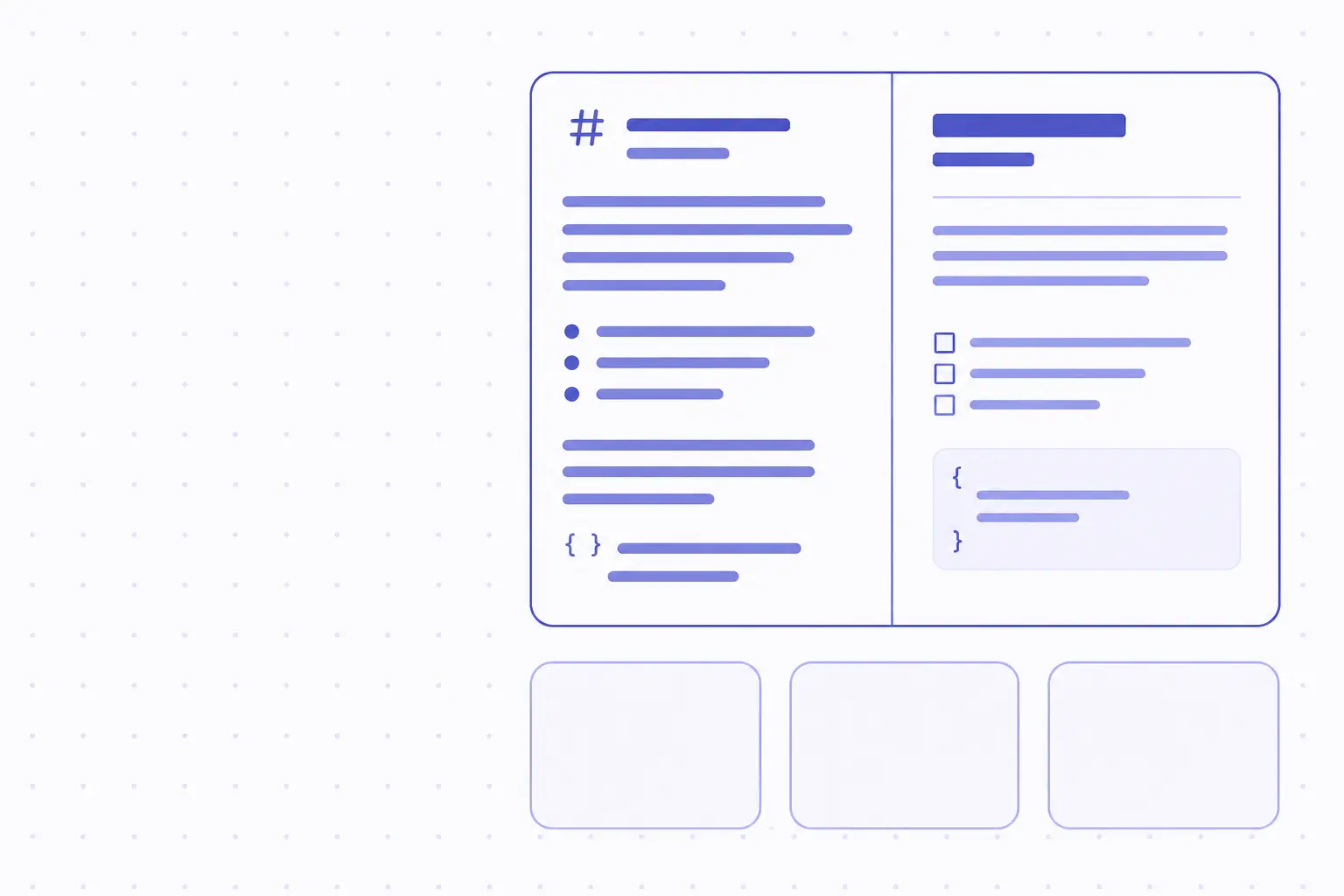
A Markdown editor is the simplest tool a developer or writer can install — except half the time, you don't want to install anything. You want a free online Markdown editor that opens in a browser tab, renders as you type, supports GitHub Flavored Markdown, and never asks for an account. This guide compares the five free options that are actually usable in 2026, the trade-offs between them, and the small features that decide whether you keep coming back.
TL;DR
- The best free online Markdown editor in 2026 is the one that runs entirely in the browser with live preview, full GFM support, and zero account requirements.
- GitHub Flavored Markdown adds tables, task lists, strikethrough, and autolinks on top of the CommonMark spec — most renderers expect GFM by default.
- A privacy-first tool keeps your draft in the tab; never paste production content into editors that round-trip text to a backend.
- Live preview matters more than fancy themes — a 50ms render delay on every keystroke compounds across a 2000-word document.
- Code blocks need real syntax highlighting (Prism, Highlight.js, or Shiki) for documentation work to be readable.
What makes a Markdown editor actually good
Markdown itself is a tiny spec. The hard parts of an editor are everything that surrounds the text: how fast it renders, which dialect it understands, how cleanly it handles long documents, and whether your draft is safe.
Live preview that keeps up at full typing speed
The single biggest differentiator between editors is render latency. A naive Markdown renderer reparses the entire document on every keystroke, which feels fine on a 200-word note and unusable on a 5,000-word draft. Good editors do incremental rendering — they reparse only the block that changed and patch the preview DOM. The threshold to look for is 16ms per keystroke (one display frame). Above 50ms, you start feeling the lag.
A useful test: open a Markdown editor, paste 4,000 words of Lorem Ipsum, then type at the bottom. If the cursor visibly trails your fingers, the editor reparses the whole document on every input event. Move on.
GFM support beyond plain CommonMark
CommonMark is the unambiguous reference grammar — it locked down the edge cases that the original 2004 Markdown left fuzzy (nested emphasis, list indentation, link reference resolution). GitHub Flavored Markdown is a strict superset that adds the four features people actually use day-to-day: tables, task list checkboxes, strikethrough with ~~tildes~~, and autolinked URLs without explicit angle brackets.
If your output target is GitHub, GitLab, a wiki, or any modern static-site generator, you need a GFM-aware editor. Strict CommonMark editors silently render | col1 | col2 | as a paragraph and [ ] task as a literal bracket — confusing if you've never run into the difference.
Code blocks with real syntax highlighting
Documentation that includes code blocks needs real syntax highlighting. The de facto choices are Prism.js, Highlight.js, and Shiki. All three accept a language hint after the opening fence:
```javascript
const greet = (name) => `Hello, ${name}!`;
console.log(greet("world"));
```
An editor that ignores the language hint and falls back to a single grey colour for all code is fine for casual notes; it is not fine for technical writing. The preview should colour keywords, strings, comments, and identifiers distinctly — and the same colour scheme should be available in light and dark themes.
The five best free Markdown editor options, compared
The browser-based Markdown editor field has consolidated. Five tools cover the realistic free options in 2026: iKit Markdown Editor, StackEdit, Dillinger, HackMD's free tier, and the public web build of Notable. Each makes a different trade-off between privacy, polish, and persistence.
Privacy and where your text actually goes
The first thing to check is whether the editor uploads your draft. Three of the five round-trip text to a backend at some point — usually as part of "auto-save" or "cloud sync" features. Two run entirely client-side and keep your input in the browser tab.
If you are drafting an internal RFC, a customer post-mortem, or anything with a credential or identifier in it, the answer needs to be "client-side only". The verification step is simple: open the browser's Network tab, type a sentence, and confirm there are no outbound requests. The same test works for any iKit tool, the JSON Decoder, and the Hash Generator — all of which run zero-upload by design.
Feature parity across the five tools
The table below summarizes the practical defaults. Live preview means render latency below 50ms on a 4,000-word document; GFM full means tables, task lists, autolinks, and strikethrough all render correctly; Privacy is whether the tool can run with no outbound network requests.
| Editor | Live preview | GFM full | Privacy | Sign-up |
|---|---|---|---|---|
| iKit Markdown Editor | Yes | Yes | Client-side | None |
| StackEdit | Yes | Yes | Cloud sync | Optional |
| Dillinger | Yes | Partial | Cloud sync | Optional |
| HackMD (free) | Yes | Yes | Server-side | Required |
| Notable web | Yes | Yes | Local + cloud | Optional |
The split is roughly: iKit and Dillinger let you start typing immediately and never ask for an account; StackEdit and Notable hint at cloud sync but keep the local-only path open; HackMD's free tier is the most polished collaborative experience but requires an account and stores your documents on its servers.
When each one wins
There is no single "best" answer — the right tool depends on what you're drafting and how long the document needs to live.
- Quick technical notes, no account, copy-out workflow — iKit Markdown Editor. Open, paste, format, copy the rendered HTML or the cleaned Markdown, close the tab.
- Long-form drafts that need cross-device sync — StackEdit. Cloud sync to Dropbox/Google Drive is convenient if you accept the trade-off.
- Real-time collaboration with a teammate — HackMD. The free tier supports multi-cursor editing.
- Local-first journaling or note-taking — Notable. The web build mirrors the desktop app's note tree.
- Quick paste-and-export to PDF/HTML — Dillinger handles export menus well, though tables and task lists need verification.
Markdown gotchas that cost the most time
Most "Markdown isn't rendering" bugs come from four reproducible mistakes. Knowing them up front saves the back-and-forth of editing, previewing, and re-editing.
Hard line breaks vs paragraph breaks
Markdown collapses single newlines into a single space. A blank line creates a new paragraph; a non-blank newline is invisible to the renderer. If you want a hard break inside a paragraph (rare in technical writing, common in poetry or addresses), end the line with two spaces or a backslash:
Line one ends here.<two spaces>
Line two starts here.

Same paragraph as line one because no blank line.
This becomes part of the same paragraph too.
The trailing-spaces convention is invisible in most editors, which is why the backslash form (\ at end of line) is more reliable.
Tables that don't render
GFM tables require three things in the right order. There must be a blank line above the table; the header separator must use at least three dashes per column (| --- |); and the column count must match across header, separator, and body rows. The most common bug is omitting the blank line — the renderer treats the header row as the last line of the previous paragraph and skips table parsing entirely.
This paragraph runs into the table because the blank line is missing.
| Col A | Col B |
| --- | --- |
| 1 | 2 |
Add a blank line between "missing." and the header row and the table renders. This is the kind of micro-bug that an editor with live preview catches in real time and that a "write now, render later" workflow finds three minutes after pasting into the wiki.
Code fences and language hints
Triple-backtick fenced code blocks are the GFM standard. The language hint after the opening fence (e.g. ```python) controls syntax highlighting and is ignored by renderers that don't support it — so adding hints is always safe. Common slip-ups:
- Mixing tabs and spaces inside the code block confuses some renderers' line-break detection.
- Nesting code blocks (one block inside another) requires more backticks on the outer fence — four backticks contain a three-backtick block.
- A language hint with a typo (
javscriptinstead ofjavascript) silently disables highlighting; the block still renders, but in monochrome.
For documentation that mixes Markdown examples inside code blocks (this very post does it), use four-backtick fences for the outer block.
A practical Markdown writing workflow
The mechanics of "writing in Markdown" matter more than the choice of editor. A few habits compound across hundreds of documents.
Split-view discipline
Most editors offer three modes: editor only, preview only, or split. The split view is the obvious choice for first drafts because mistakes surface in the preview as you type. For long-form editing, switch to editor-only and check the preview at section boundaries — constant glances at the rendered side fragment your attention and slow drafting.
Keyboard shortcuts that save minutes
Almost every Markdown editor exposes the same dozen shortcuts: bold, italic, code span, link, heading levels 1–3, ordered list, unordered list, blockquote, and toggle preview. Memorizing the four you use most (bold, link, code, list) shaves seconds off every paragraph. Over a 2,000-word draft, that adds up to minutes.
Embedding images and links cleanly
Markdown image syntax is  — the alt text is mandatory for accessibility, not optional. For inline images, host them somewhere stable (your CDN, GitHub raw, your blog's /public directory). For reusable links, the reference syntax keeps the prose cleaner:
See the [CommonMark spec][cm] for the unambiguous grammar, and [GFM][gfm]
for the GitHub-specific extensions.

[cm]: https://spec.commonmark.org/
[gfm]: https://github.github.com/gfm/
This pattern matters more in long documents where the same external link appears five times — change the URL once at the bottom and every reference updates.
When you should reach for something other than Markdown
Markdown is the right tool for most technical documents, but not all of them. Three cases where it falls short:
- Heavy layout work — multi-column pages, sidebars, callout boxes with custom backgrounds. Markdown gets you 40% of the way and the rest is HTML or a custom extension.
- Mathematical notation — only some renderers support LaTeX inside Markdown via the
$...$and$$...$$delimiters. If your audience reads on GitHub, math support is patchy. Use a notebook (Jupyter, Observable) for math-heavy documents. - Spreadsheet-style data — small tables work, but a 50-row table with sortable columns is better as a real spreadsheet. If you need to convert structured exports into a sheet, the iKit SQL Converter handles SQL dumps and the JSON Decoder flattens nested JSON.
For everything in between — READMEs, documentation, blog posts, internal wikis, change logs, runbooks, email drafts you'll later paste into a styled UI — Markdown remains the highest-leverage format on the web.
References
- CommonMark Spec — Strict, unambiguous grammar for Markdown; current version 0.31.2.
- GitHub Flavored Markdown Spec — Defines GFM as a strict superset of CommonMark adding tables, task lists, strikethrough, and autolinks.
- Markdown Editor Online — iKit — Official page for the client-side editor compared in this guide.
- StackEdit — In-browser Markdown editor — Official homepage for the StackEdit project.
- Dillinger — Online Markdown Editor — Official homepage for the Dillinger editor.
- HackMD — Official homepage for the collaborative Markdown workspace.
Related on iKit
- Markdown Editor Online: Comparison — A side-by-side test of the same five editors, scored on privacy, GFM coverage, and live-preview latency.
- Online Markdown Viewer with Live Preview — When you only need to render an existing
.mdrather than edit it, the read-only viewer is the simpler tool. - Format Ugly JSON: 3 Methods — Markdown handles your prose; the JSON Decoder handles the API responses you paste into your prose.
- Base64 Encode & Decode: 10 Real Examples — When a Markdown document needs to embed a small image or signed token inline, Base64 is the encoding that makes it possible.
Related posts
Word Counter vs MS Word Count: When Browser Wins (2026)
A browser word counter and MS Word's word count often disagree by a few words. Here's exactly why they differ, and when the browser is the better tool.
HSL vs OKLCH: Why Design Systems Are Switching (2026)
HSL vs OKLCH comes down to one thing: HSL's lightness shifts across hues while OKLCH stays perceptually even. Here's why design systems switch in 2026.
Image Converter vs Photoshop Save As: When Browser Wins (2026)
A browser image converter often beats Photoshop's Save As for plain format changes, batch jobs, and privacy. Here is exactly when each one wins in 2026.