Browser Diff vs git diff vs FileMerge: When to Use Each (2026)
Browser diff, git diff, and FileMerge each solve a different comparison job. Here's exactly when to reach for each, with the commands and workflows to match.
Browser Diff vs git diff vs FileMerge: When to Use Each
You need to compare two versions of something, and you have three obvious options: paste both into a browser diff checker, run git diff, or open FileMerge on your Mac. They look interchangeable, but they solve different problems. Picking the wrong one wastes time — running git diff on text that was never committed, or spinning up a GUI to compare two three-line snippets. This guide maps each tool to the job it actually does best.
TL;DR
- Browser diff: fastest for any two loose blocks of text, no repo, no install.
git diff: the right call whenever the content is already tracked in Git.- FileMerge (
opendiff): native macOS two-pane GUI, good for editing while comparing. - All three find changes with a diff algorithm; they differ in interface and scope.
- Reach for
-wto ignore whitespace, but know it can hide real bugs.
What "diff" actually means across these three tools
All three tools answer the same question — what changed between A and B — but they wrap that answer in very different interfaces. Understanding the shared core makes it obvious why each one fits a different situation.
How a diff algorithm finds changes
Under the hood, every diff tool runs a sequence-comparison algorithm to find the smallest set of insertions and deletions that turns one text into the other. Git's default is a greedy algorithm published by Eugene Myers in 1986. Git also ships patience, histogram, and minimal variants; an empirical study of Git's diff algorithms found that histogram often describes code changes more clearly than the default, though no single algorithm wins every time. Browser diff checkers and FileMerge use their own comparable implementations, which is why the same two files can produce slightly different hunk boundaries in each tool.
Line-level vs word-level vs character-level
A line-level diff marks a whole line as changed even if you only touched one character. A word-level diff narrows that down to the edited token, which is far easier to read in prose. Most tools default to line granularity and offer word mode as a switch. If you want the deeper theory here, see our write-up on word-level diff vs line-level diff.
Two-pane vs inline output
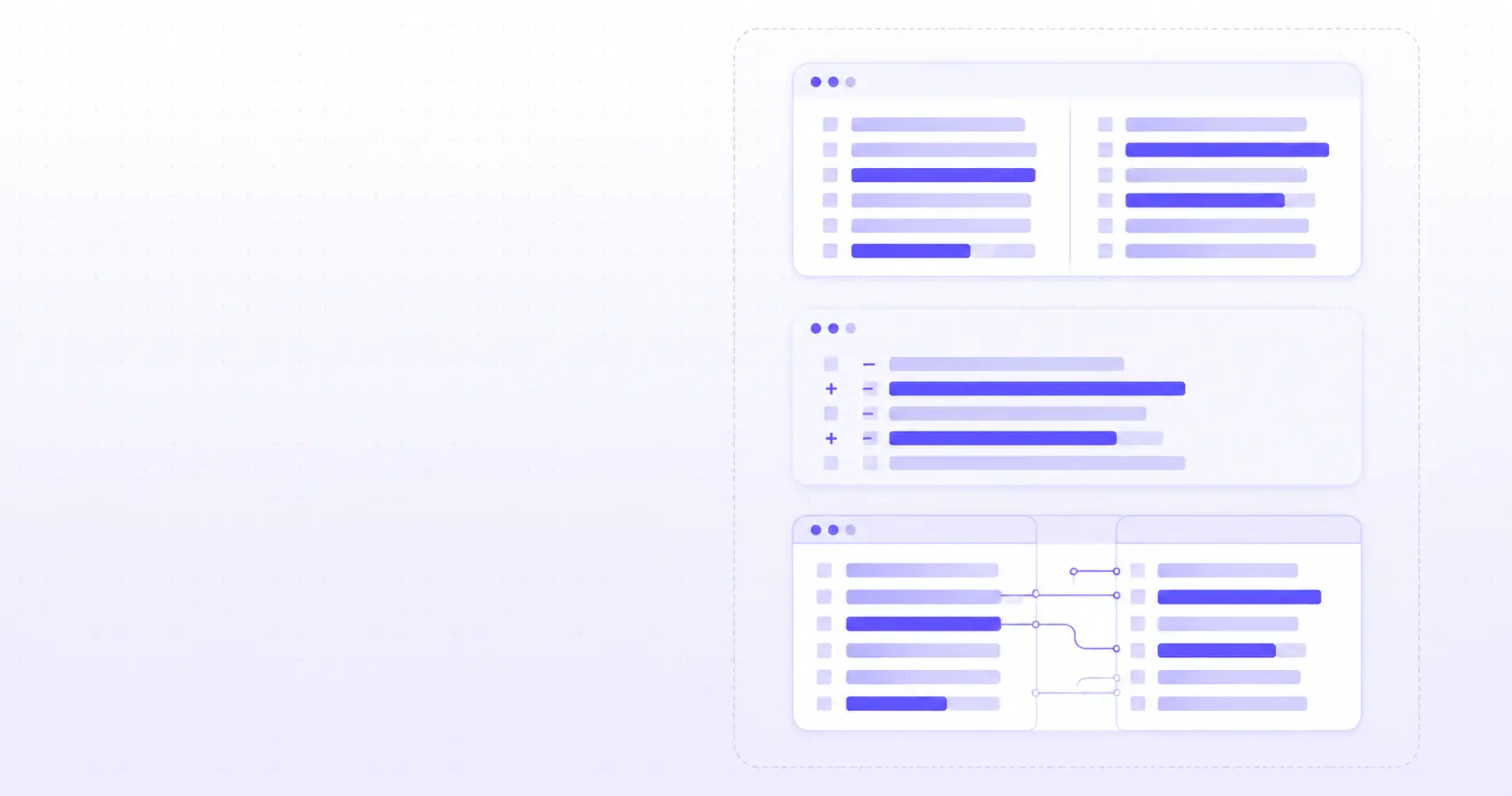
The other big split is presentation. git diff prints a single inline stream in your terminal with + and - markers. Browser checkers and FileMerge usually show two panes side by side with connecting highlights. Neither is "better" — inline is compact and scriptable; two-pane is easier to scan for large, scattered edits.
How to compare two texts without installing anything
When the content isn't in a repository — a config someone pasted in Slack, two API responses, a draft and its rewrite — a browser diff is the shortest path. Open iKit's Diff Checker, paste both blocks, and you see the changes instantly.
When a browser diff checker is the right call
Reach for the browser first when any of these are true:
- The text lives nowhere Git can see it (chat, email, a form field, a log paste).
- You're on a machine without Git installed, or without your dotfiles.
- You want to hand a non-developer a link instead of teaching them a command.
- You need the answer in five seconds and won't repeat the comparison.
The privacy question: what leaves your machine
A common worry with online diff tools is that pasting sensitive text ships it to a server. iKit's tools run entirely in your browser — the comparison happens in local JavaScript, and nothing is uploaded. That matters when the two things you're comparing are, say, production config files. If you're comparing structured data, the same in-browser principle applies to related tools like the JSON Decoder and the Markdown Editor.
Where a browser tool falls short
A browser diff has no memory. It doesn't know your commit history, can't diff a whole directory tree, and won't let you stage or apply changes. The moment you need "what changed since my last commit" or "diff these 40 files," you've outgrown it — that's git diff territory.
How to see changes before committing with git diff
If the files are tracked in Git, git diff is almost always the right answer, because it understands the one thing a browser tool can't: your history. The base command has several modes worth memorizing.
Staged, unstaged, and between commits
The most common confusion is which diff you're looking at. Here's the short map:
# Unstaged changes vs the index
git diff

# Staged changes that will go in next commit
git diff --staged

# Difference between two commits
git diff HEAD~1 HEAD

# One file, working tree vs last commit
git diff HEAD -- src/app.js
The official git diff-options documentation lists the full set. These modes are the whole reason git diff beats a browser paste for versioned code: the comparison targets are commits, not clipboard contents.
How do I ignore whitespace in git diff
Reindentation and trailing spaces can bury a one-character fix under a wall of noise. Two flags fix that:
# Ignore whitespace entirely
git diff -w

# Ignore only changes in amount of whitespace
git diff -b
Use these with care. Ignoring whitespace is a lifesaver on a reformatting commit, but in whitespace-significant files — Python, YAML, Makefiles — a "whitespace-only" change can be a real, behavior-changing bug. We cover exactly when this backfires in ignore whitespace in git diff.
Word-diff for prose and long lines
For Markdown, documentation, or any file with long lines, line-level output is painful. Git can highlight the changed words instead:
git diff --word-diff
git diff --color-words
--word-diff recomputes the standard line diff into word-level changes, so a single edited word no longer flags the entire paragraph. You can also switch the underlying algorithm with --diff-algorithm=histogram when the default groups changes in a confusing way.
When to use FileMerge (opendiff) on a Mac
FileMerge is Apple's native two-pane diff-and-merge GUI, launched from the terminal via opendiff. It's the odd one out here: not a web tool, not a terminal printer, but a full macOS app that's been quietly shipping with developer tools for decades.
Launching FileMerge from the terminal
opendiff is a thin launcher for FileMerge.app. Compare two files directly:
opendiff old.html new.html
FileMerge opens with the two files side by side and a live-updating merged view at the bottom. Per the opendiff man page, the binary lives inside Xcode at Contents/Developer/usr/bin/opendiff. It requires the full Xcode install, not just the Command Line Tools — if opendiff errors, set Xcode as the active developer directory in Xcode ▸ Settings ▸ Locations.
How do I use FileMerge as my git diff tool
Git can hand its temporary before/after files to FileMerge through the difftool mechanism. opendiff is one of Git's built-in tool names, so setup is one line:
git config --global diff.tool opendiff
git difftool HEAD~1 HEAD
The git difftool documentation explains that Git copies each side to a temp file and passes them as $LOCAL and $REMOTE. One quirk: without --dir-diff, git difftool opens the files one at a time and waits for you to quit FileMerge between each — annoying on a large changeset. Add -d for a single directory-level view.
Where FileMerge shows its age
FileMerge is stable and free, but it hasn't kept pace with modern GUI diff tools. There's no syntax highlighting to speak of, the merge UI is dated, and it only exists on macOS. Many developers now prefer VS Code (git config diff.tool vscode) or a dedicated app. FileMerge earns its place when you want zero extra installs on a Mac that already has Xcode and you like an editable two-pane view.
Browser diff vs git diff vs FileMerge: which to use when
There's no single winner — the right tool depends on where your content lives and what you'll do next.
A quick decision table
| Situation | Best tool |
|---|---|
| Two pasted snippets, no repo | Browser diff |
| Changes to tracked files | git diff |
| Diff inside a script/CI | git diff |
| Native GUI, edit while comparing | FileMerge |
| Sharing a diff with a non-dev | Browser diff |
A second lens is scope and portability:
| Tool | Scope | Runs where |
|---|---|---|
| Browser diff | Any two texts | Any browser |
git diff |
Repo history | Anywhere Git is |
| FileMerge | Two files/dirs | macOS + Xcode |
Mixing all three in one workflow
These aren't mutually exclusive. A realistic day might look like: use git diff --staged to sanity-check a commit, drop a colleague's pasted config into the browser Diff Checker to spot the one changed value, then fire up FileMerge with opendiff when you want to hand-merge two branches of a template. Match the tool to whether the content is tracked, loose, or being edited, and the choice stops feeling ambiguous.
References
- Git — git-diff Documentation — canonical reference for diff modes,
-w/-b,--word-diff, and--diff-algorithm. - Git — git-difftool Documentation — how Git launches external tools like opendiff, plus
$LOCAL/$REMOTEand--dir-diff. - opendiff(1) man page — FileMerge launcher usage and binary location inside Xcode.
- How different are different diff algorithms in Git? — empirical comparison of Myers, patience, and histogram output quality.
Related on iKit
- Diff Checker Online: compare any two texts fast in your browser — the browser-diff option from this guide, explained end to end with how the algorithm works.
- Side-by-side vs unified diff: how to read each format — decodes the two-pane vs inline split that separates FileMerge from
git diff. - Word-level diff vs line-level diff: when to use each — deeper dive on the granularity choice behind
--word-diff. - Ignore whitespace in git diff: when it hides bugs — expands on the
-wwarning above with concrete failure cases. - LCS algorithm explained: how diff tools find changes — the longest-common-subsequence math underneath Myers and friends.
- How to compare two JSON files without false diffs — a structured-data workflow where normalizing before diffing matters.
- Compare two Markdown drafts without Word Track Changes — applying these same tools to prose instead of code.
Related posts
Classroom Timer: Fullscreen Countdowns for Teachers (2026)
A classroom timer has to be readable from the back row, stay awake and make a noise. Here is the fullscreen browser setup that does all three.
HIIT Timer Setup: Tabata, EMOM and AMRAP in the Browser (2026)
A HIIT timer you can run from one browser tab: Tabata 20/10, EMOM and AMRAP explained, plus why 20-second intervals break most online timers.
Kitchen Timer Online: 12 Recipe Presets in One URL (2026)
A kitchen timer online beats the one-at-a-time timer on your phone. Twelve recipe presets, all bookmarkable links, plus the browser APIs that keep them honest.