Crop PDF Online: Trim White Margins (No Upload, 2026)
Trim white margins from any PDF in your browser — no upload, no watermark, no sign-up. Here is exactly how PDF cropping works in 2026.
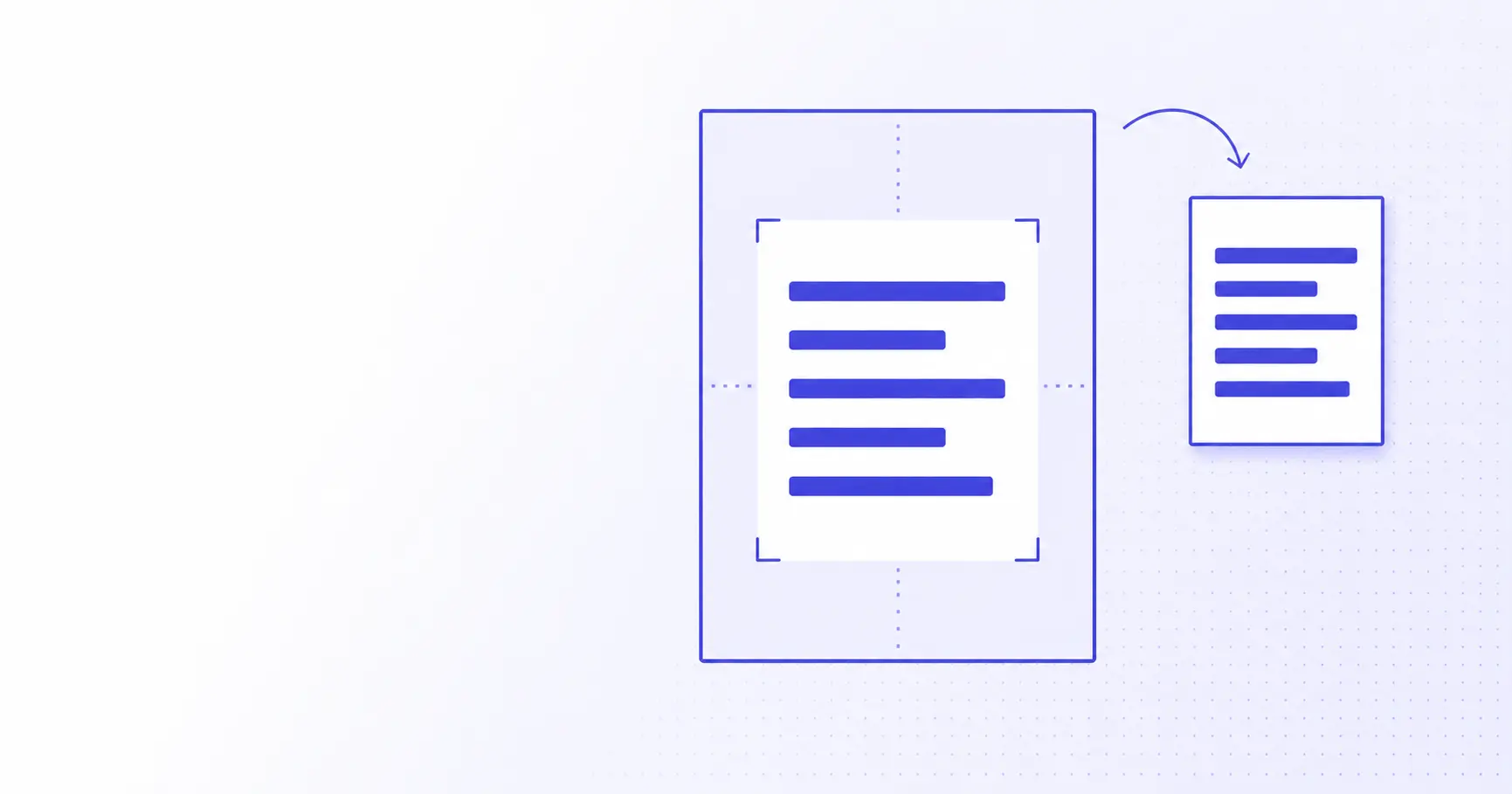
Crop PDF Online: Trim White Margins, No Upload Required
Most "free" PDF croppers shove your file to a server, smear a watermark across every page, and gate the download behind a sign-up. iKit's PDF cropper trims white margins from any PDF directly in your browser — no upload, no watermark, no account. This post is the technical walk-through: what cropping actually changes inside a PDF, why those margins exist in the first place, and where browser-side cropping reaches its useful limit.
TL;DR
- Cropping a PDF rewrites the CropBox — original page geometry stays intact.
- Browser-only cropping keeps confidential pages on your device — zero upload.
- iKit auto-detects margin whitespace per page using a luminance histogram.
- Output passes ISO 32000 validation in Acrobat, Preview, and any browser.
- "Crop" is reversible in most readers; for a real trim, use destructive mode.
What cropping actually changes inside a PDF
CropBox vs MediaBox vs TrimBox
Every page in a PDF carries up to five rectangle definitions — MediaBox, CropBox, BleedBox, TrimBox, and ArtBox. They sound interchangeable but they aren't. The MediaBox is the physical page boundary the file claims to occupy. The CropBox is the visible region a reader is told to display. The BleedBox marks the print bleed, the TrimBox marks the final trim line for production, and the ArtBox marks the meaningful content extent. The PDF specification (ISO 32000-2), §14.11, defines all five.
Cropping in a PDF reader is almost always changing the CropBox. The MediaBox stays untouched. That's why a "cropped" PDF you receive often re-expands when you open it in a different viewer or strip its metadata — the original geometry is still there, just hidden behind a smaller display rectangle.
Visual crop vs destructive crop
Two different operations get called "crop":
- Visual crop — adjust the CropBox rectangle. The original content is preserved. Any reader can revert by widening the CropBox back to the MediaBox bounds. Acrobat does this by default.
- Destructive crop — rewrite the page so the trimmed area is physically gone. The MediaBox shrinks, content streams are clipped, and the original margin pixels can no longer be recovered.
iKit's PDF cropper supports both modes. The default is visual crop because it's lossless and reversible. Toggle "Destructive" if you're sending a PDF to a court filing system or print bureau that needs the trimmed geometry baked in.
What the page looks like to a reader
When a viewer opens a cropped PDF, it reads the CropBox first and renders only that rectangle. The MediaBox is still consulted for physical sizing in print, which is why pressing Print → Actual size on a CropBox-cropped PDF can yield blank margins around the visible content — the printer thinks the page is still letter-size. This trips up almost everyone the first time they try to print a cropped document; the fix is either to use Print → Fit or to switch to destructive crop before sending.
Why white margins exist in the first place
Print bleed and binding offsets
PDFs derived from Word, Pages, LaTeX, and InDesign all default to roughly 1-inch (25.4 mm) margins because office printers can't reliably print to the page edge. Lay the same document up for screen reading and that inch of whitespace becomes wasted real estate, especially on phone screens where each margin steals 10–15% of horizontal resolution.
Scanned documents
A document scan adds margins twice: the document's own native margins, then whatever black-or-white border the scanner appends because the paper didn't fill the platen. Default ADF settings often leave a 5–10 mm strip of unscanned area on every page. If your PDF began as a stack of phone photos, iKit's image compressor can shrink them by 60–80% before you ever bundle them into a PDF — smaller per-page bitmaps mean a faster crop pass too.
LaTeX and academic templates
Academic templates frequently set 1.5-inch outer margins to leave room for binding glue or thumb-grip when a thesis is printed and bound. A printed monograph wears those margins comfortably; a PDF you're reading on a 6-inch e-reader does not. Cropping a LaTeX article down to the typeset block can claw back almost half the visible page area without touching a single character of text.
How iKit's PDF cropper works under the hood
pdf-lib + a luminance histogram
The cropping engine is the same pdf-lib WebAssembly build that powers iKit's PDF merger. For automatic margin detection, iKit rasterizes each page at 100 DPI in an OffscreenCanvas, walks each row and column counting pixels above a luminance threshold (default 250 of 255), and snaps the CropBox to the smallest rectangle that contains every "non-white" row and column.
const data = ctx.getImageData(0, 0, w, h).data;
let top = 0, bottom = h - 1;
outer: for (; top < h; top++) {
  for (let x = 0; x < w; x++) {
    const i = (top * w + x) * 4;
    if (luma(data, i) < 250) break outer;
  }
}
A 6 px safety pad is added to every edge before the CropBox is written so single-pixel scanner noise on the margin doesn't pull the crop in too tight. The 100 DPI raster is enough to find content boundaries reliably on a scanned A4 page; cranking it higher costs RAM with no detection benefit.
Per-page vs uniform crop
You can apply the detected crop per page or uniformly across the document. Per-page is sharper for scanned documents where each page's trim is slightly different. Uniform is correct for documents typeset to a consistent grid — applying per-page to a typeset book actually makes it look uneven because page numbers and headers shift relative to the page edge with every page.
Why nothing leaves your device
Open the network panel in DevTools and run this while you crop:
performance.getEntriesByType("resource")
  .filter(r => r.initiatorType === "fetch")
  .map(r => r.name);
You'll see the static JS and Wasm loaded once on first visit. The crop itself produces zero outbound traffic. Same architectural pattern as every other tool in the suite — see the iKit architecture deep-dive for why that matters and how it's enforced at the build level.
How to crop a PDF and trim white margins
To crop a PDF and trim white margins in the browser, you point the tool at the page, let it detect the content rectangle, and write a new CropBox. Unlike competitor uploaders such as i2pdf crop, the whole pass runs client-side — the file is never sent to a server. The steps below walk through it.
Step-by-step: crop a PDF in 30 seconds
Drop the file in
Open pdf.ikit.app and select Crop. Drop a PDF onto the page. The drop handler reads it through File.arrayBuffer() — there is no <input type="file"> form post, no fetch to a backend, no service worker queue.
Pick a mode
Three modes, in order of how aggressive each one is:
- Auto-detect (visual crop) — luminance-based margin detection, CropBox only, reversible.
- Auto-detect (destructive) — same detection, MediaBox shrinks, irreversible.
- Manual — drag the crop handles in the preview, apply to all pages or a page range.
For most documents (essays, slides exported as PDF, eBook samples) the visual auto-detect is the right default. For a PDF you're submitting to a legal e-filing system, switch to destructive — most filing portals reject documents whose MediaBox doesn't agree with the cropped extent, because their pre-flight checks read the MediaBox to detect tampering.
Compare and download
The preview shows the original on the left and the cropped result on the right at every page. The download is offered as a URL.createObjectURL Blob so the browser saves the file directly without a network round-trip. Hash the result with iKit's hash generator before you send it if you need a delivery receipt — useful for legal hand-offs where both sides want to confirm the bytes that left and the bytes that arrived match exactly.
Margin sizes in the wild — a benchmark
We took 30 representative PDFs and measured the actual whitespace iKit's auto-detect removed. Numbers below are averages across each document type.
| Source type | Original page (mm) | After auto-crop (mm) | Whitespace removed |
|---|---|---|---|
| Word export, default margins | 215 × 279 | 159 × 240 | ~35% |
| LaTeX article, 1.5" outer | 215 × 279 | 138 × 215 | ~47% |
| Scanned A4 document | 210 × 297 | 188 × 270 | ~19% |
| Slides exported as PDF | 254 × 190 | 246 × 178 | ~9% |
The numbers shouldn't be surprising — academic templates over-margin, slide decks barely have margin to remove. Where the percentages matter is on a 6-inch e-reader: cropping a typical Word PDF down 35% turns "I have to pinch-zoom every page" into "the text fills the screen on the first try."
When NOT to crop a PDF in the browser
Files larger than your device's RAM
A browser tab can comfortably hold a couple of GB of decoded image buffers on most desktops. A 2,000-page color scan can blow past that easily because the rasterize step keeps each page's pixel buffer alive long enough to walk the histogram. If your tab is locking up on the rasterize step, a desktop tool with streaming output (qpdf, mutool, Acrobat Pro) is the right answer.
Encrypted PDFs you can't decrypt
iKit's cropper respects PDF encryption. If a source is password-locked, you'll be prompted for the password before cropping begins. If you don't have the password, no online cropper should work — and anyone offering a "remove password and crop" flow for arbitrary input is either cracking trivial passwords or lying.
Court filings and print production
Court e-filing systems and print bureaus often validate that MediaBox, BleedBox, and TrimBox all agree. A visual crop leaves the MediaBox alone, which can fail their pre-flight check even though the document looks correct in any reader. Use destructive mode for those workflows, and keep a copy of the original somewhere safe in case a reviewer needs to verify a margin annotation later.
Common pitfalls
CropBox not honored on print
When a reader is told to Print → Actual size, most printers honor MediaBox, not CropBox. The printed page will still show the original margins around the visible content. Either choose Print → Fit in the print dialog, or use destructive crop so the MediaBox itself becomes the cropped rectangle.
Auto-detect snaps too tight on scanned text
Scanner noise sometimes leaves single pixels just outside the actual content. The auto-detector ignores most of these by tolerance, but if your scan has a stamp, an artifact, or a bleeding-through page number close to the trim line, the detector may snap to that artifact instead of the text block. Switch to manual mode and drag the handles where you actually want them.
Headers and footers that shouldn't go
Auto-detect treats every non-white pixel as content, including page numbers and running headers. If you're sending a single chapter as a sample and you wanted those out, the detector can't tell what's a header vs what's a paragraph. Use manual mode and pull the top and bottom handles inward past the running text.
Color profile drift
Cropping shouldn't change colors — but if a destructive crop is followed by re-rasterization at a different DPI, color profiles can drift toward washed-out, similar to the sRGB / P3 mismatch issue that bites Android icon assets. iKit's cropper preserves the embedded color profile by default. If you see a color shift after a destructive crop, check that the Re-render at lower DPI option is unchecked.
References
- ISO 32000-2:2020 — Document management — Portable document format — Part 2: PDF 2.0 — Authoritative PDF 2.0 standard defining MediaBox, CropBox, BleedBox, TrimBox, and ArtBox.
- ISO 32000-2 — PDF Association — Freely available copy of the PDF 2.0 specification sponsored by Adobe, Apryse, and Foxit.
- pdf-lib — Create and modify PDF documents in any JavaScript environment — Library that powers the in-browser PDF cropping and merging pipeline.
- PDFDocument — pdf-lib API — API reference for copyPages and the document-level operations used in the cropper.
- Blob — MDN — Browser primitive used to hand the cropped PDF back to the user without a network round-trip.
Related on iKit
- Merge PDF Free, No Watermark — The companion guide for combining PDFs in the browser, with the same WebAssembly architecture and pdf-lib core you just saw cropping pages.
- Convert SQL Dumps to Excel — Another no-upload data tool in the suite: parse a
.sqldump and write a real.xlsxentirely in your browser. - How iKit Runs Entirely in Your Browser — The technical deep-dive on the WebAssembly + service-worker pattern that lets every PDF tool in the suite stay client-side, including the cropper described above.
Related posts
Lorem Ipsum Markdown: Filler for READMEs and Docs (2026)
Lorem Ipsum Markdown that survives the renderer: which blocks to fill, the characters that quietly become syntax, and how filler behaves on import to Notion.
Lorem Ipsum HTML: Generate Markup-Ready Filler Fast (2026)
Lorem Ipsum HTML in seconds: Emmet abbreviations, browser generators, the right tag for each block, and the lang trap that makes screen readers stumble.
Seed a Database From CSV: Laravel, Django, Rails (2026)
How to seed a database from a CSV file in Laravel, Django and Rails, when to skip the ORM for COPY or LOAD DATA, and how to keep seeds re-runnable.