App Icon Generator: iOS, Android & Web from 1 PNG (Free, 2026)
Free app icon generator: turn one 1024×1024 PNG into all 38 iOS, Android adaptive, and PWA icons in 60 seconds. No upload, no Xcode, no Android Studio, no sign-up.
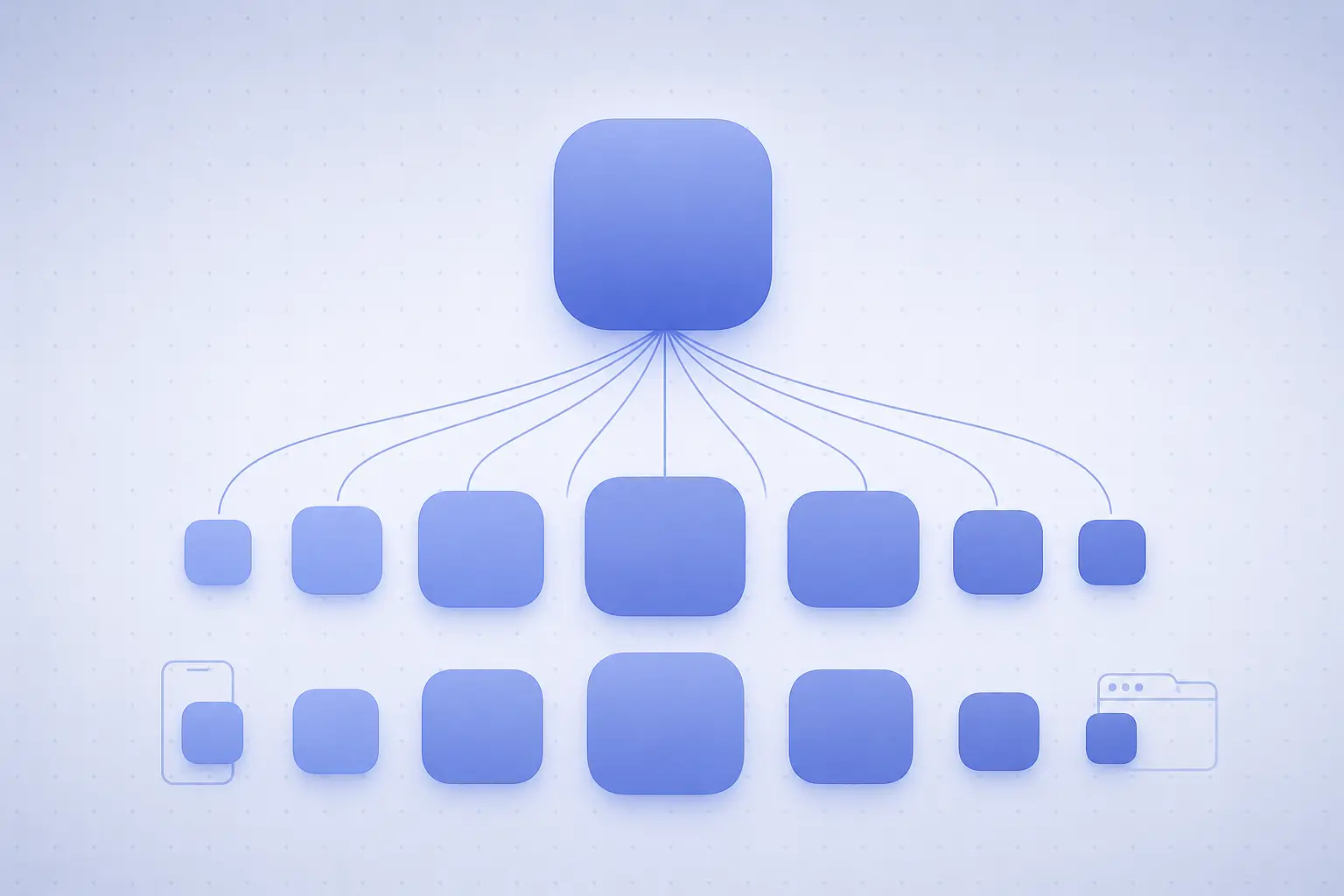
How to Generate App Icons for iOS, Android, and Web
Shipping an app in 2026 means producing dozens of icon sizes — 18 for iOS, 11 for Android's adaptive format, another handful for the Play Store and the Web App Manifest. Each platform wants a different set of dimensions, paddings, and filenames. Get one wrong and your submission bounces from App Store Connect before a human reviewer ever sees it. This guide walks through the full size matrix, a 60-second browser workflow that generates every asset from a single 1024×1024 source, and the edge cases that trip up even experienced developers.
Why one source image isn't enough
Xcode 14 (2022) made iOS dramatically easier by accepting a single 1024×1024 image and auto-generating the rest at build time. But if you're shipping cross-platform, you still need a full matrix for Android launchers, watchOS, tvOS, and progressive web apps — and the math adds up fast.
Apple's Human Interface Guidelines list more than a dozen distinct iOS icon dimensions across iPhone, iPad, Spotlight, Settings, and notifications. Google's adaptive icon system — introduced in Android 8.0 (Oreo) and refined each year since — requires both a foreground and background layer at five density buckets. Add maskable icons for PWAs, defined in the W3C Web App Manifest spec, and you're looking at 35+ files for a single cross-platform release.
Why naive auto-scaling breaks
If you take your 1024×1024 icon and scale it down to 48×48 with a bicubic resample, the output is usable but muddy. Tiny icons need tighter stroke weights, punchier contrast, and sometimes a different composition — details that vanish at 40 px. Generators that understand platform guidelines apply Lanczos-3 filtering and alpha premultiplication to keep small icons crisp instead of smeared.
Why manual export is error-prone
Pulling 35 icon sizes out of Figma or Sketch by hand takes 20-30 minutes and is exactly the kind of tedious, error-prone work that ends in a rejected submission when you transpose two digits or forget the 20×20 @2x variant for iPad notifications. One source → one button press is the right workflow for a small team.
The two masters you have to get right
Most problems come from a bad master, not a bad generator. If you nail these two, everything downstream is a clean downsample:
- 1024×1024 PNG, sRGB, full-bleed, no transparency, no rounded corners. iOS applies the squircle mask at render time.
- 512×512 PNG for the Google Play Store listing — also full-bleed, also no transparency.
Everything else in the matrix can be generated from the 1024 master.
The complete icon size matrix
Here's the definitive list you'll need for a cross-platform release in 2026.
iOS app icon generator sizes (iOS and iPadOS)
| Device | Pixel size | Scale | Purpose |
|---|---|---|---|
| App Store | 1024×1024 | 1x | Marketing / store listing |
| iPhone home | 180×180 | 3x | 60pt @3x |
| iPhone home | 120×120 | 2x | 60pt @2x |
| iPad Pro home | 167×167 | 2x | 83.5pt @2x |
| iPad home | 152×152 | 2x | 76pt @2x |
| Spotlight | 120×120 | 3x | 40pt @3x |
| Spotlight | 80×80 | 2x | 40pt @2x |
| Settings | 87×87 | 3x | 29pt @3x |
| Settings | 58×58 | 2x | 29pt @2x |
| Notification | 60×60 | 3x | 20pt @3x |
| Notification | 40×40 | 2x | 20pt @2x |
Xcode groups these into an Asset Catalog AppIcon.appiconset. As of Xcode 14, you can skip all but the 1024 if you opt into "Single Size" mode — the toolchain renders the rest at build time.
Android adaptive icon sizes
Adaptive icons split into two layers: a foreground and a background, both 108×108 dp. The visible area is only the inner 66×66 dp circle — the outer ring is reserved for OEM masks and launcher animations. If your foreground touches the edges of the 108 canvas, it will clip during the launch animation.
| Density | Foreground | Background | Legacy icon |
|---|---|---|---|
| mdpi | 108×108 | 108×108 | 48×48 |
| hdpi | 162×162 | 162×162 | 72×72 |
| xhdpi | 216×216 | 216×216 | 96×96 |
| xxhdpi | 324×324 | 324×324 | 144×144 |
| xxxhdpi | 432×432 | 432×432 | 192×192 |
| Play Store | — | — | 512×512 |
Android 13 added a third monochrome layer used for themed icons on the home screen — export a white-on-transparent version of your foreground for it.
Web / PWA icon sizes
For a progressive web app, the manifest expects at least these:
| Size | Purpose | Maskable? |
|---|---|---|
| 192×192 | Android home screen | Optional |
| 512×512 | Splash screen | Recommended |
| 180×180 | apple-touch-icon (iOS) | No |
| 32×32 | Browser tab | No |
| 16×16 | Legacy favicon | No |
If your PWA also ships an Apple Touch Startup Image you'll add 2-3 more splash sizes, but those are backgrounds, not icons — out of scope here.
How to generate every icon in the browser in 60 seconds
This is the fastest path for a solo developer or a designer handing off assets to an engineer. It runs entirely on-device, which matters if the icon is confidential before launch.
1. Export a clean source
From Figma, Illustrator, Affinity Designer, or Sketch, export a 1024×1024 PNG. sRGB color space, full-bleed (no transparent margin around your artwork), no rounded corners. Name it icon-1024.png.
2. Drop it into the App Icon Generator
Open appicon.ikit.app and drag your PNG onto the page. The whole pipeline runs in WebAssembly plus the Canvas API, so your raw pixel data never leaves the browser tab.
3. Pick your platforms
Check the boxes for the targets you care about: iOS, iPadOS, watchOS, Android, Android Adaptive, Web/PWA, favicon. Each adds its full set of sizes to the output bundle. You can also enable "strip metadata" to shave a few KB off each PNG.
4. Download the ZIP
Output is a single ZIP with a platform-named folder per target, each holding the correct sizes and (for iOS) a ready-to-drop Contents.json Asset Catalog file. Unzip, drag the iOS folder into Assets.xcassets, drop the Android folder into res/mipmap-*, and you're done.
If the bundle is heavier than you'd like before committing to Git, pipe it through imagecompressor.ikit.app — most icon PNGs shed 40-60% with a palette-mode pass and no visible quality change.
Platform gotchas that cost submission rejections
iOS: do not round the corners yourself
Apple applies the squircle mask at render time. If you ship a pre-rounded icon, iOS rounds the corners again and you end up with the visible corner radius set inside a transparent box. App Store Connect flags this with:
ITMS-90717: Invalid App Store Icon. The App Store Icon in the asset
catalog in 'YourApp.app' can't be transparent or contain an alpha channel.
Export full-bleed, corner-to-corner, no alpha. The system handles masking.
Android: respect the 66 dp safe zone
Your 108×108 dp foreground has only a 66×66 dp circular safe area. Anything in that inner circle is guaranteed visible across every OEM launcher mask — Pixel circles, Samsung squircles, OnePlus teardrops, MIUI squares. Anything outside might be clipped.
Here's a minimal ic_launcher.xml drawable that wires up all three layers:
<?xml version="1.0" encoding="utf-8"?>
<adaptive-icon xmlns:android="http://schemas.android.com/apk/res/android">
    <background android:drawable="@color/ic_launcher_background"/>
    <foreground android:drawable="@mipmap/ic_launcher_foreground"/>
    <monochrome android:drawable="@mipmap/ic_launcher_monochrome"/>
</adaptive-icon>
Drop that file in res/mipmap-anydpi-v26/ic_launcher.xml and the per-density PNGs in res/mipmap-*/ic_launcher_foreground.png. Android picks the right density automatically at install time.
Web: the maskable-icon trap
PWAs render icons inside a browser-drawn shape. If no icon in your manifest has purpose: "maskable", Chrome on Android falls back to wrapping your full-bleed icon in a white letterbox. The fix is a manifest entry with both purposes covered:
{
  "icons": [
    {
      "src": "/icons/icon-192.png",
      "sizes": "192x192",
      "type": "image/png",
      "purpose": "any"
    },
    {
      "src": "/icons/icon-512.png",
      "sizes": "512x512",
      "type": "image/png",
      "purpose": "any"
    },
    {
      "src": "/icons/icon-512-maskable.png",
      "sizes": "512x512",
      "type": "image/png",
      "purpose": "maskable"
    }
  ]
}
The maskable variant should add ~10% padding inside the 512 canvas so nothing important sits where the mask will crop. Browsers that understand maskable pick that one; everything else falls back to the any icon.
watchOS and tvOS have different shapes
Apple Watch uses circular icons at six sizes depending on series: 216, 172, 196, 232, 258, and 294 pixels. Apple TV uses layered .lsr files — multiple PNGs stacked for the parallax effect.
Generate them from the same 1024 master, but design with the final shape in mind. Anything near the rectangular edges gets cropped by the circular mask, and tvOS parallax emphasizes elements placed closer to the "front" layer.
Automating icon generation in your build
For CI pipelines or design systems with frequent icon updates, the browser workflow is fine for a first pass but heavy for the tenth. Here's how to wire it into your own toolchain.
Xcode 14+: trust the Asset Catalog
Xcode now accepts a single 1024×1024 icon per target in the App Icon asset catalog — you don't need to pre-generate the 18 iOS sizes anymore. Drop the master into Assets.xcassets/AppIcon.appiconset, tick "Single Size" in the inspector, and the toolchain produces the rest at build time. No external script, no extra dependency.
sharp (Node.js) for cross-platform automation
The sharp library wraps libvips and produces cleaner small icons than sips, magick, or Pillow's resize defaults:
import sharp from 'sharp';

const sizes = [16, 32, 48, 72, 96, 144, 180, 192, 512, 1024];

for (const size of sizes) {
  await sharp('icon-1024.png')
    .resize(size, size, {
      kernel: sharp.kernel.lanczos3,
      fit: 'cover'
    })
    .png({ compressionLevel: 9, adaptiveFiltering: true })
    .toFile(`icon-${size}.png`);
}
That produces ten cleanly-downsampled PNGs in under half a second on an M-series Mac. For minimum file size, pipe the output through oxipng or pngquant afterwards — you'll shave another 30-50%.
Verify builds with a hash manifest
If you're generating icons in CI, you can catch silent drift — a library upgrade that changed a default filter, a source edit nobody documented — by hashing every file:
find ./icons -name "*.png" -type f -exec sha256sum {} \; | sort > icons.sha256
Diff against the previous build's manifest. Any mismatch tells you something in the pipeline changed. For a quick visual diff without leaving the browser, paste a couple of files into hash.ikit.app and compare their digests — also fully client-side.
Common pitfalls and fixes
A short list of things that break more than they should:
- Source is JPEG instead of PNG. JPEG's 8×8 DCT blocks become visible at 48 px. Start from a lossless source — PNG or SVG — and let the generator handle compression.
- Source has alpha. Transparency is supported but risky. Some launchers fill the alpha channel with black, others with white, a few with a device accent color. Full-bleed is safer unless you're explicitly targeting adaptive icons.
- Source dimensions are odd (e.g. 1000×1000). Downsampling to 48×48 from a non-power-of-2 source introduces half-pixel rounding and slight edge fuzzing. Stick to 1024 or 512.
- Forgetting watchOS sizes. If your iOS app has a companion watch app, App Store Connect blocks the archive upload when any watch icon size is missing.
- Shipping only @2x and @3x with no @1x. Some simulators and older devices still need @1x. Include them; they're typically 1 KB each.
- Leaving Photoshop's "generator-version" metadata. It can add 10-30 KB per file — trivial for one icon, 500 KB across a 35-file bundle.
If you only remember one thing: export a clean 1024 master, full-bleed, sRGB, no alpha, no corners. Everything downstream becomes mechanical.
References
- App icons | Apple Developer Documentation — Apple HIG, source for the 1024×1024 master and iOS icon size matrix.
- Adaptive icons | Views | Android Developers — Official source for 108 dp adaptive layers, 66 dp safe zone, monochrome themed-icon layer.
- Support different pixel densities | Android Developers — Confirms the mdpi-through-xxxhdpi density buckets and scale ratios used in the Android table.
- Web Application Manifest — W3C spec defining the
iconsmember and themaskable/anypurpose values. - Configuring your app icon using an asset catalog | Apple Developer — Xcode 14 single-size icon asset catalog reference.
Related on iKit
- iOS App Icon 1024×1024 Generator — The iOS branch in depth: the 1024×1024 master, the full size table, and the
Contents.jsonApp Store Connect validates. - Mipmap Generator for Android: 5 Density Folders — The Android branch in depth:
res/mipmap-*density buckets and adaptive-icon layers. - Apple Touch Icon: Sizes & Specs — The web branch for the 180×180 PNG iOS Safari pins to the Home Screen.
- Appicon.co Alternative: iKit App Icon Generator — How iKit's browser-only generator compares to appicon.co on privacy, output, and speed.
- Compress PNG without losing quality — App icons are exported as PNG. Run the source through this to drop the file size before bundling into your app.
- Remove image backgrounds for free — Most icon designs need a transparent background — this is the prep step before App Icon Generator.
- Generate a QR code for your app's landing page — Pair your fresh icons with a QR that drops users straight into the App Store or Play Store listing.
Related posts
How to Find a Single Typo in a 5,000-Line File (2026)
Find a single typo in a large file fast: use a word- and character-level diff to pinpoint the one changed character instead of scanning 5,000 lines.
Compare Two Markdown Drafts Without Word Track Changes (2026)
How to compare two Markdown drafts without Word's Track Changes: use a diff checker, git word-diff, or CriticMarkup to see every real edit in plain text.
How to Compare Two JSON Files Without False Diffs (2026)
Learn how to compare two JSON files without key-order and whitespace noise. Normalize first, sort keys with jq, and diff only the changes that matter.