How to Generate QR Codes for Wi-Fi, vCards, and URLs in 2026
Generate QR codes for Wi-Fi networks, contact vCards, and URLs in seconds — covering payload formats, error correction, and design rules for reliable scans.
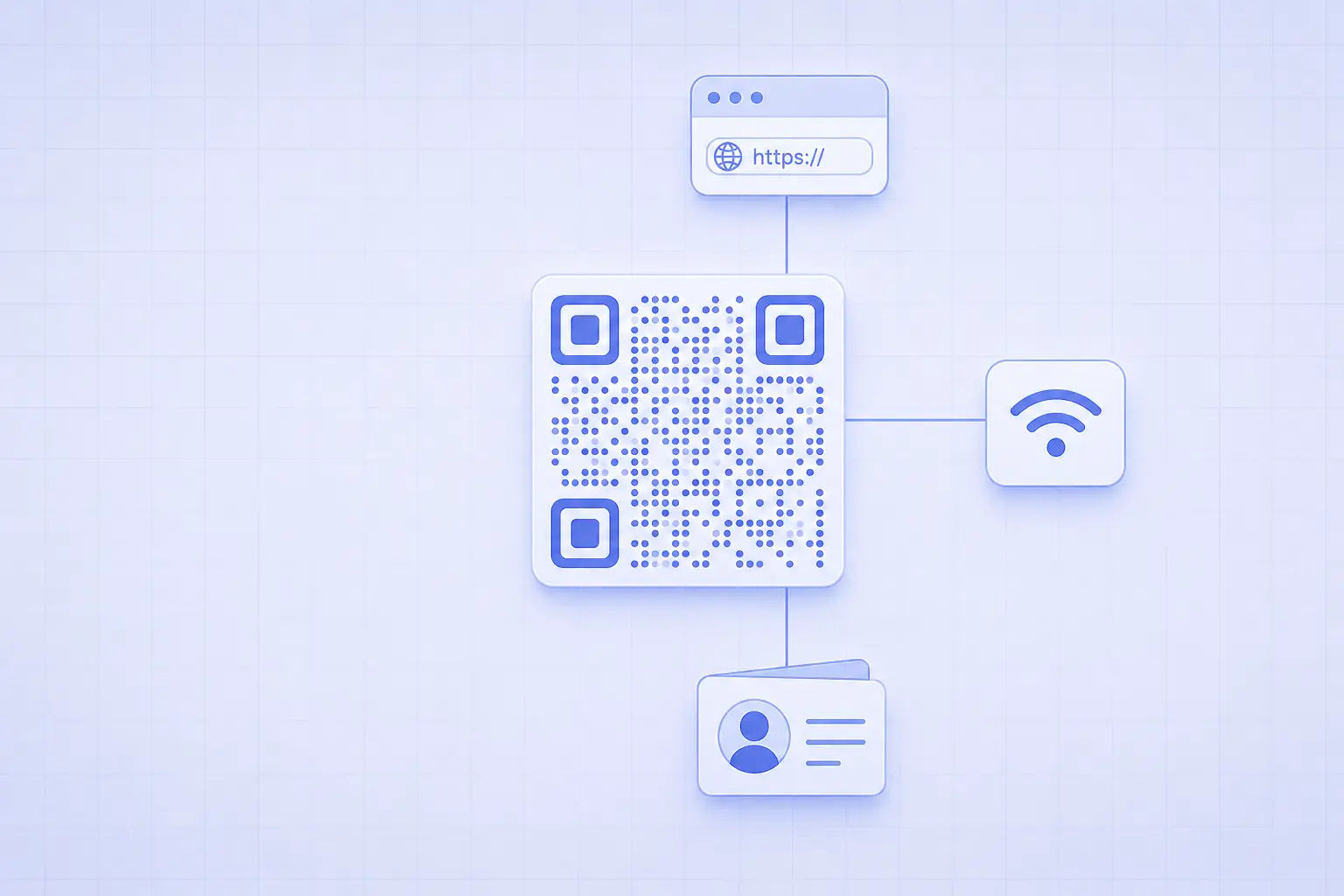
How to Generate QR Codes for Wi-Fi, vCards, and URLs in 2026
A QR code is a version-stamped grid of black and white squares that any phone camera can decode in under a second. What it actually contains, though, is a plain text string — and each use case (a URL, a Wi-Fi handshake, a contact card) requires a specific payload format. This guide walks through the three formats people actually generate, the error correction settings that decide whether your code survives a reprint, and the design choices that quietly wreck a working code if you ignore them.
What is actually inside a QR code
A QR code is a 2D matrix barcode standardized as ISO/IEC 18004. The spec defines 40 versions, four error correction levels, and four data modes (numeric, alphanumeric, byte, kanji). A scanner reads the modules from the corner finder patterns, runs Reed-Solomon decoding to recover any damaged bits, and hands the resulting text payload to the operating system.
The three components of any QR payload
Every QR is just three things stacked together. There is the payload — the raw text string scanners receive. There is the encoding mode, which decides how that text is packed into bits (numeric mode is densest at 3.3 bits per digit; byte mode is the most general at 8 bits per character). And there is the error correction level, which trades data density for the percentage of the code that can be damaged before scans fail.
The OS interprets the payload after decoding. A string starting with https:// opens a browser. A string starting with WIFI: triggers a network connect prompt on iOS 11+ and Android 10+. A string starting with BEGIN:VCARD opens the contact-add sheet. The generator does not choose those behaviours — the payload prefix does.
Error correction, version, and module size
Error correction (ECC) decides how much of the code can be obscured and still scan. The four levels are L (~7% recoverable), M (~15%), Q (~25%), and H (~30%). Higher ECC means more redundant data, so the code grows in physical size for the same payload. For a screen-scanned URL, L is plenty. For anything destined for print on a sticker, a poster, or a wall, M is the safe default. H is reserved for codes that will sit outdoors, get folded, or have a logo overlaid in the center.
Version (1 to 40) sets the number of modules per side — version 1 is 21×21, version 40 is 177×177. The generator picks the smallest version that fits your payload at the chosen ECC level. Module size is the physical width of one black square; below ~0.4mm in print, scanners struggle even at H-level ECC.
Why "free QR generator" is a security question
Most online QR generators wrap your URL in a tracking redirect — qr-tracking-domain.example/r/abc123 instead of the URL you typed. The pitch is "scan analytics", but the cost is that the generator's server sees every scan and can change the destination later. If the company shuts down, every printed code stops working. If it's acquired, your codes start pointing somewhere else.
A privacy-first generator like the iKit QR Code Generator encodes the literal payload you typed and runs entirely in the browser. The image is generated client-side, the URL is never sent to a server, and the code keeps working forever because there is no redirect domain in the middle. The same model applies to other iKit tools like the Password Generator and the UUID Generator.
URL to QR: generate a QR code for a link
URLs are the easy case. You paste a URL, you get a QR code that opens that URL when scanned. There are still three knobs worth adjusting.
Pick the right error correction level
For a digital screen — a slide, a Zoom share, a Notion page — ECC level L is fine. Pixels are crisp and contrast is perfect. For anything print-bound, jump to M. For codes in motion (transit ads, tradeshow banners, anywhere people scan from an angle or with bad lighting), Q is the better default. Reserve H for codes you intend to overlay with a logo or that will live outdoors for months.
Tracking links vs raw URLs
If you need scan analytics, generate a short tracking link first (Bitly, Rebrandly, your own URL shortener), then encode that short URL into the QR. The payload https://yoursite.example/r/abc is shorter than a URL with five UTM parameters, which means a smaller version number and a more forgiving code.
The opposite trade-off — encoding the long URL with UTM params directly — keeps you in control if the shortener disappears, but produces a denser code that is harder to scan from a distance. For high-stakes printed material like packaging or signage, encoding the canonical long URL on a domain you own is the safer choice.
Common URL QR mistakes
Three pitfalls account for most non-scanning URL codes:
- Missing protocol. A QR encoding
yoursite.example/page(nohttps://) opens as a search query on most phones, not a URL. Always include the scheme. - URL fragments stripped by scanners. A handful of scanners truncate at
#. If your URL relies on a hash route, test on iOS and Android before printing the run. - Capital letters in the path. QR alphanumeric mode is case-insensitive (uppercase only). Mixed-case URLs force the encoder into byte mode, growing the code by ~30% for the same content.
QR code WiFi: generate a Wi-Fi join code
A QR code WiFi join is a string in a specific format that triggers the network-connect prompt on a modern phone. There is no formal RFC — the format originated in the ZXing open-source barcode library around 2010 and became the de facto standard that the major OS vendors converged on.
The Wi-Fi payload string format
The payload is a single line:
WIFI:T:<authType>;S:<SSID>;P:<password>;H:<true|false>;;
Where:
T— authentication type:WPA(covers WPA/WPA2/WPA3),WEP(legacy, avoid), ornopass(open networks)S— the SSID (network name)P— the password (omit entirely fornopass)H—trueif the network is hidden, omit orfalseotherwise- The trailing
;;is required — it terminates the record
A working example for a typical home network:
WIFI:T:WPA;S:CafeWifi;P:LatteArt2026;H:false;;
Paste that into a QR generator, pick error correction M, and you get a printable code that any iPhone or Android phone will recognize as a Wi-Fi join request.
Escaping special characters in passwords
Four characters need backslash escaping inside SSID and password fields: \, ;, ,, and :. So a password like pass;word\hello becomes pass\;word\\hello in the payload. If the password is purely numeric, wrap it in double quotes (P:"12345678") — some scanners otherwise interpret it as a hex string and the connect attempt fails silently.
This is the most common reason a Wi-Fi QR "doesn't work" — the password contains a semicolon, the encoder doesn't escape it, the parser truncates at the unescaped delimiter, and the phone tries to connect with the wrong password. A good generator handles escaping for you; a good debugging step is to copy the encoded payload string out of the generator and visually verify the escapes are present.
Hidden networks and EAP enterprise
For hidden networks, set H:true so the phone actively probes rather than waiting to see the SSID broadcast. For enterprise networks (WPA2-Enterprise with EAP), the simple format does not work — there is no field for username, EAP method, certificates, or anonymous identity. Enterprise Wi-Fi requires a configuration profile (.mobileconfig on iOS, an XML profile on Android), distributed by your MDM. A QR code that opens a URL pointing at that profile is the closest practical equivalent.
vCard QR code: embed a contact card
A vCard QR code embeds a contact card directly into the code. When scanned, the phone offers to add the contact — name, phone, email, company, website — without typing a single character. It is the standard for conference badges, business cards, and email signatures.
vCard 3.0 vs 4.0
There are two live versions of the vCard spec. vCard 3.0 (RFC 2426) is older but has the broadest scanner support — every iOS Camera app and every Android scanner reliably parses it. vCard 4.0 (RFC 6350) is the modern standard and supports more fields (typed addresses, calendar URIs, structured names with parts), but a small number of older scanners trip on it.
For a printed business card or a conference badge, use vCard 3.0. For a digital signature where you control the consumer, use 4.0. A minimal, broadly compatible 3.0 payload looks like this:
BEGIN:VCARD
VERSION:3.0
N:Lee;Sam;;;
FN:Sam Lee
ORG:Acme Inc.
TITLE:Lead Engineer
TEL;TYPE=CELL:+15551234567
EMAIL:[email protected]
URL:https://acme.example
END:VCARD
Each line is a property. N is the structured name (last;first;middle;prefix;suffix). FN is the formatted display name. TEL and EMAIL accept type parameters. END:VCARD is required — without it, the record is invalid.
MeCard — the smaller alternative
If size is critical (a tiny code on a watch face, a space-constrained sticker), MeCard is a more compact format that some Android scanners support natively:
MECARD:N:Lee,Sam;TEL:+15551234567;EMAIL:[email protected];URL:https://acme.example;;
MeCard fits more in a smaller code, but iOS support is inconsistent — the Camera app may show the raw text instead of a contact-add prompt. For mixed-audience use, vCard 3.0 is the safer bet.
What to include — and what to leave out
The temptation is to dump every field you have into the vCard. Resist it. Each field grows the QR payload, which forces a higher version, denser modules, and a worse scan rate from a distance. A useful vCard contains the formatted name, organization, title, one phone, one email, and a website. Skip postal addresses, photos, and birthdays unless the use case specifically calls for them.
Comparing the three payload formats
The three formats vary in size, OS support, and the right ECC default. The table below summarizes the practical defaults:
| Payload type | Format prefix | Typical length | Recommended ECC | OS handling |
|---|---|---|---|---|
| URL | https:// |
30–80 chars | L (digital) / M (print) | Opens browser, universal |
| Wi-Fi | WIFI:T:...;; |
40–120 chars | M | Connect prompt on iOS 11+, Android 10+ |
| vCard 3.0 | BEGIN:VCARD |
150–400 chars | M (or Q with logo) | Contact-add sheet, universal |
| MeCard | MECARD: |
60–200 chars | M | Android: native, iOS: inconsistent |
The denser the payload, the larger the QR module count for a given ECC level — which means you either print bigger or accept that scans from a distance will fail. This is why a Wi-Fi code with a 32-character password and a vCard with photo data behave very differently in the field, even at the same ECC setting.
Designing QR codes that actually scan
Generating the right payload is only half the job. The visual design decides whether the code scans on the first try in a lit conference hall or fails three times before the user gives up.
Contrast, quiet zone, and minimum size
QR scanners need three things visually: high contrast (black on white is the gold standard), a quiet zone (a margin of background colour around the code, equal to four module widths), and enough physical size that each module is clearly resolved. A printed QR intended to be scanned from arm's length should be at least 2cm × 2cm; one on a wall meant to be scanned from across the room scales linearly with distance — the rule of thumb is a 1:10 ratio (a code 2m from the viewer needs to be 20cm wide).
Inverted colour schemes (white code on black) work in theory but trip a non-trivial fraction of scanners — many decoders assume "darker module = data" and skip the polarity check. Coloured codes (your brand colour on white) work if the contrast ratio against the background exceeds 7:1 — the same threshold the W3C Web Content Accessibility Guidelines recommend for accessible text. Pastel-on-pastel never works.
Logos in the center: when it's safe
Overlaying a logo in the center of a QR is the most common visual customization. It works because of error correction — the scanner treats the obscured area as damage and recovers the missing data from the redundant bits. The rules:
- Stay under the ECC threshold. At H-level (30%), a logo can occupy roughly 25% of the central area. At M-level, no more than 12%.
- Keep the logo away from the three corner finder patterns. Cover any one of them and the scanner cannot lock on.
- Use a simple, high-contrast logo. A photographic image in the middle is a recipe for failure.
If the logo is non-negotiable, generate the QR at H-level ECC and then test with at least three scanner apps before shipping the design.
Print, screen, and angle considerations
A QR on a screen is forgiving — pixels are crisp, contrast is maximal, brightness is uniform. A QR on print is unforgiving — ink bleed thickens modules, paper texture scatters light, and creases eat error correction. For print, oversize the code by 25% beyond the calculated minimum and use vector output (SVG or PDF) so scaling stays clean.
For codes scanned from an angle (transit ads, signage above eye level), foreshortened modules need to be larger to remain readable. Add 30–50% to the minimum size for any code that won't be scanned head-on.
Testing before you ship
A QR code that works on your phone is not necessarily a QR code that works on every phone. The minimum-viable test plan before printing or publishing:
- Scan with the iOS Camera app (no third-party app)
- Scan with the Android Camera or Google Lens
- Scan from twice the intended distance, then from three times
- Scan in low light if the code will live somewhere dim
- Print a single test copy at the final size before printing the full run
Tools like the iKit QR Code Generator let you preview and download the SVG, and because generation is client-side, you can iterate on payload changes without re-uploading or hitting a rate limit. If your payload contains a hash or signed token, the iKit Hash Generator and Base64 Encoder live in adjacent tabs and follow the same no-upload model.
References
- QR code — Wikipedia — Summary of ISO/IEC 18004, version sizes, four error-correction levels, and data modes.
- RFC 6350 — vCard Format Specification — Defines vCard 4.0 properties, structured names, and contact-card grammar.
- RFC 2426 — vCard MIME Directory Profile — The older vCard 3.0 spec still favored for broad scanner compatibility.
- ZXing Wi-Fi barcode format — Origin of the
WIFI:T:...;;payload format adopted by iOS and Android. - WCAG 2.1 Contrast (Enhanced) — The 7:1 contrast threshold referenced for colored QR designs.
Related on iKit
- Text to QR: Beyond URLs — The companion guide covering SMS, email, calendar, geo, and payment QR payloads beyond the three formats here.
- Generate QR Codes: WiFi, vCards, URLs — Open the iKit QR Code Generator to build any of these codes in your browser, with nothing uploaded.
- Encode and decode Base64 with real examples — QR payloads are technically text-encoded — Base64 plays the same role for binary data inside JSON, URLs, and headers.
- Generate every app icon size from one source — If your QR code points at a mobile app's landing page, the matching app icons are usually the next thing you generate.
Related posts
How to Find a Single Typo in a 5,000-Line File (2026)
Find a single typo in a large file fast: use a word- and character-level diff to pinpoint the one changed character instead of scanning 5,000 lines.
Compare Two Markdown Drafts Without Word Track Changes (2026)
How to compare two Markdown drafts without Word's Track Changes: use a diff checker, git word-diff, or CriticMarkup to see every real edit in plain text.
How to Compare Two JSON Files Without False Diffs (2026)
Learn how to compare two JSON files without key-order and whitespace noise. Normalize first, sort keys with jq, and diff only the changes that matter.