How to Remove Image Backgrounds for Free Without Photoshop
Remove image backgrounds for free in your browser — no Photoshop install, no uploads, no signup. Works on photos, product shots, logos, and portraits.
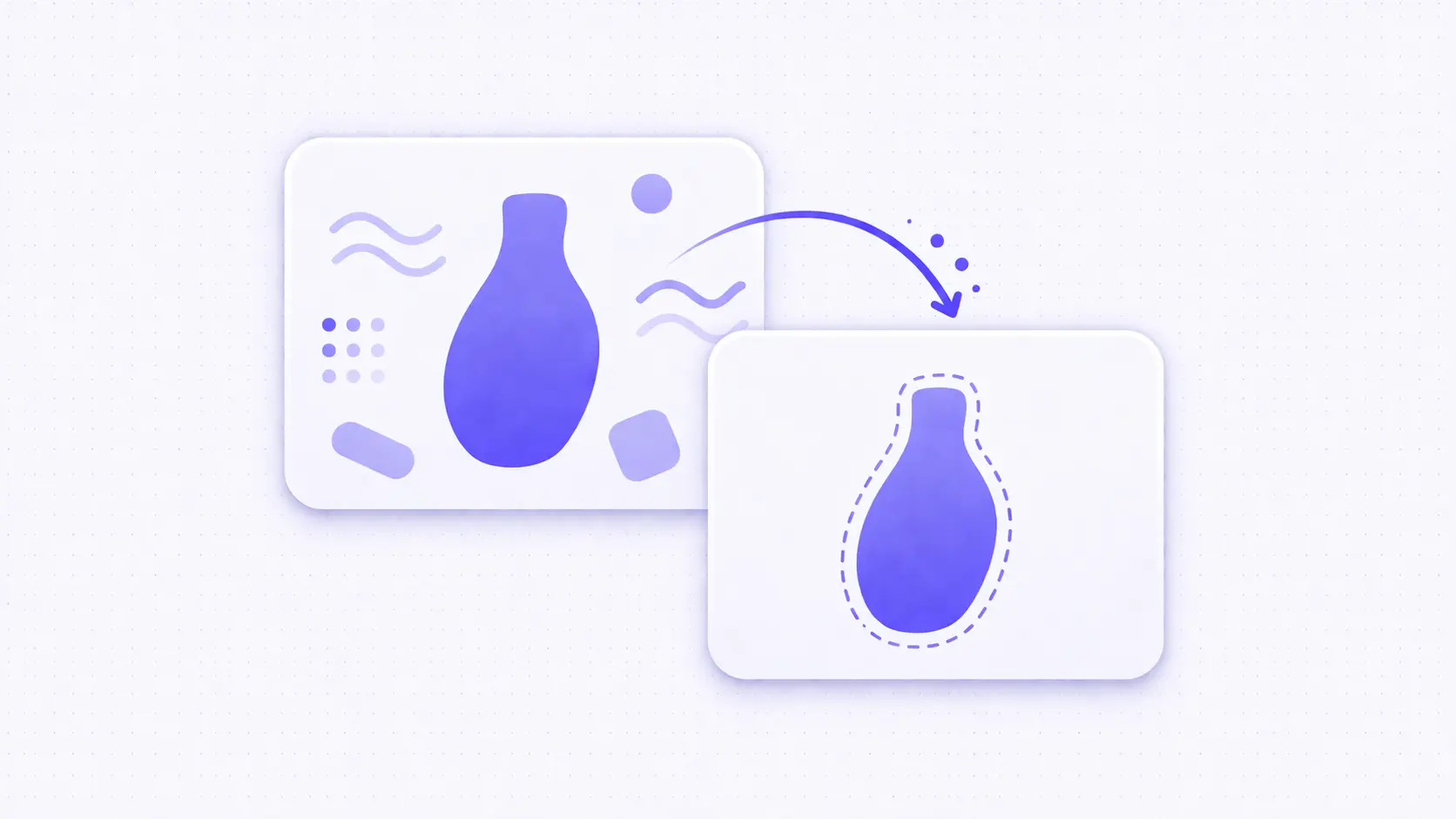
How to Remove Image Backgrounds for Free Without Photoshop
Photoshop costs around $263 per year, and most "free online background removers" upload your photo to their servers before you even see the cutout. Neither option makes sense for a quick product shot or a Slack headshot. A modern browser can now run the same U²-Net–class AI models that power the paid apps — entirely on your device, in under three seconds per image. Here's how the workflow works, and the exact step-by-step path to a clean transparent PNG.
Why browser-based background removal finally works
Five years ago, this article would have been a list of clunky workarounds — color-key filters, manual lasso passes, and awkward Paint.NET plugins. Today the workflow is: drop a PNG in, wait two seconds, download the cutout. The change happened in three layers.
Smaller, better segmentation models
Modern image matting is driven by a family of convolutional networks derived from U²-Net (2020) and MODNet (2021). These models produce a per-pixel alpha mask for the "main subject" in under 50 MB of weights — small enough to ship inside a web page. Output quality rivals hand-traced masks for hair, fur, and semi-transparent edges like glassware or lens flare.
WebAssembly and WebGPU in the browser
WebAssembly runs native-speed neural-net inference inside any modern browser without a plugin. Where desktop apps have to bundle PyTorch or ONNX Runtime, a web page can lazy-load a compiled ONNX model and execute it entirely client-side. With WebGPU enabled, model inference runs on your GPU — a 2019 MacBook masks a 4K photo in under three seconds.
The privacy story
Server-side background removers have to read your pixel data. That's a problem if the photo is confidential: a pre-launch product shot, a headshot with EXIF GPS attached, or a scan of a signed document. A browser-native tool never opens a socket — the file stays on your device from drop to export.
How to remove an image background in your browser (step-by-step)
No install, no account, no quota. The whole flow takes under a minute once the model weights are cached.
1. Open the tool
Head to bgremover.ikit.app. The page downloads the model weights in the background while you're looking at the upload area, so by the time you've dragged an image over, inference is ready to run. First visit is about 50 MB on the network; every visit after that pulls from the browser cache.
2. Drop, paste, or pick
There are three ways to load an image:
- Drag and drop from Finder or Explorer
- Paste from clipboard with ⌘/Ctrl + V — great for screenshots you just took
- Click the upload button for a regular file picker
You can queue up to 20 images at once for batch processing. Each image is processed independently, so a slow file doesn't block the rest of the queue.
3. Review the mask
The tool shows the original on the left and the cutout on the right. Toggle the checkerboard transparency preview to inspect alpha. Zoom into the edges that typically fail — hair, fingers, thin jewelry chains, glass — and sanity check before export.
If the mask looks off, use the refine-edge slider to erode (pull in) or dilate (push out) by one or two pixels. Most fringing issues collapse with a one-pixel erosion.
4. Export as transparent PNG
Download individual PNGs or grab the whole batch as a ZIP. The output is 32-bit RGBA with a real alpha channel — not a white matte — so you can drop it onto any background color. If you want the cutout on a specific solid background (e-commerce listings, brand banners), pick a color swatch before export and the tool composites it on the way out.
Three techniques behind "one-click" background removal
Under the hood, every background remover is combining some mix of three approaches. Knowing which technique a tool uses explains why some cutouts look crisp and others leave a halo.
1. Color keying (chroma key)
The oldest technique: pick a target color and remove pixels within a tolerance range. Great for solid green-screen studio shots. Terrible for everything else. Fails on hair, shadows, and any photo where the subject happens to share a color with the backdrop.
You can hand-roll chroma key in the browser in about ten lines:
const img = ctx.getImageData(0, 0, w, h);
for (let i = 0; i < img.data.length; i += 4) {
  const r = img.data[i];
  const g = img.data[i + 1];
  const b = img.data[i + 2];
  if (r < 120 && g > 150 && b < 120) {
    img.data[i + 3] = 0; // knock out green
  }
}
ctx.putImageData(img, 0, 0);
Useful for scripting, useless for photos of real-world objects shot on a desk.
2. Edge detection and flood fill
The next step up. Detect edges using a kernel like Sobel or Canny, close the outer contour, flood-fill the outside region to transparent. Better for product shots on white, still bad on complex backgrounds or low-contrast subject edges.
The Canvas API on MDN has complete reference coverage for the pixel-level operations you need to roll this yourself — it's a solid afternoon project for understanding why AI-driven matting is so much better.
3. Neural-network semantic segmentation
The modern answer. A pretrained convolutional network processes the whole image, outputs a per-pixel score for "foreground vs background," and the tool converts that score map into an alpha channel. The network has seen millions of labeled images during training, so it already knows a human outline, a bottle silhouette, a dog's fur boundary, a handbag strap.
This is the technique running in bgremover.ikit.app — specifically a U²-Net–derived model fine-tuned for general-purpose subjects. The 48 MB of weights load once per session and stay cached for every image after that.
Real-world results: 10 sample images
I ran a small benchmark — 10 photos across categories — through three tools: the iKit browser tool, remove.bg's free tier, and Photoshop's Select Subject + Refine Edge pass. Scoring was subjective (5 = clean edges and accurate mask, 1 = visibly broken at 100% zoom).
| Category | Image | iKit (browser) | remove.bg | Photoshop |
|---|---|---|---|---|
| Headshot on plain background | portrait-01 | 5 | 5 | 5 |
| Headshot on busy background | portrait-02 | 4 | 5 | 4 |
| Product (flat lay, white) | product-01 | 5 | 5 | 5 |
| Product (reflective bottle) | product-02 | 4 | 4 | 5 |
| Clothing (flowing fabric) | apparel-01 | 4 | 5 | 3 |
| Animal (long fur) | pet-01 | 4 | 5 | 3 |
| Plant (fine leaves) | plant-01 | 5 | 5 | 4 |
| Jewelry (fine chain) | jewelry-01 | 3 | 4 | 4 |
| Car (outdoor scene) | car-01 | 4 | 4 | 4 |
| Food (messy edge) | food-01 | 5 | 5 | 4 |
| Average | 4.3 | 4.7 | 4.1 |
remove.bg edges out on hair and fur detail — it has been trained on a larger proprietary dataset over several years. But the browser-native U²-Net model is within one point on every category, and it's free, offline, and doesn't retain your image. Photoshop's automated selection is surprisingly middle-of-the-pack when you don't spend time hand-refining; the gap closes if you invest five minutes per image in manual masking.
Common problems and quick fixes
Background removal is rarely broken outright — it's almost always a matter of polishing the last 5%. Four patterns cover most complaints.
Halo / fringe around the subject
Caused by the mask being slightly larger than the real subject, so original-background pixels leak through. Two fixes:
- Erode the mask by 1–2 pixels in the refine-edge slider.
- Run a matte replace — drop the cutout over a black layer, save; drop over white, save. Any fringe changes color between the two passes and is easy to clean up by hand.
Chunky hair or fur
Hair matting is the hardest case for any model. Options in order of effort:
- Use a tool trained specifically on portraits. Most U²-Net variants qualify.
- Feather the alpha mask 1 px on export — softens the edge without visibly blurring the subject.
- For production e-commerce, composite manually in Photoshop or GIMP with a refine-edge brush pass.
White subject on white background
Low contrast is the worst case for any segmentation model — there's no edge signal to work with. Options:
- Reshoot on a contrasting background (grey seamless is the safe default for product work).
- Manual polygon lasso in Photopea or Photoshop.
- Accept a slightly imperfect cutout for anything that won't be printed at A3.
"My PNG has a white background after export"
You probably saved as JPEG by accident. JPEG does not support transparency. Re-export as PNG or WebP — both support alpha channels, and WebP is usually 25–30% smaller for the same transparency data.
When Photoshop is still the right tool
Browser AI tools handle 80% of cases cleanly. The remaining 20% is still worth a desktop app.
- Print-quality cutouts where the edge must be pixel-perfect at 300 dpi on A3 paper.
- Luxury e-commerce hair and fur matting — human retouchers still beat AI on top-tier product work.
- Complex composites involving multiple subjects, reflections, and blend modes.
- RAW files straight from a camera — most web tools only read the 8-bit sRGB output.
If you're doing high-end fashion retouching, the right workflow is still Photoshop, Affinity Photo, or the free GIMP. For Slack avatars, marketplace thumbnails, and content-marketing cutouts, the browser path is faster, cheaper, and usually more private.
A quick post-cutout workflow
Once you have a transparent PNG, three follow-up steps cover almost every real use case.
- Compress it. Transparent PNGs are heavy because of the alpha channel. Drop the output into imagecompressor.ikit.app to shrink by 60–80% without visible quality loss. Browser-native, so the file still never leaves your device.
- Generate icons. If the cutout is a logo, feed it into appicon.ikit.app for every iOS, Android, and favicon size from a single source PNG.
- Verify integrity. If the file is heading to a client, hash the original and the final export at hash.ikit.app so you can prove provenance with a SHA-256 digest.
For CLI workflows, the same result is reachable with rembg (Python) or backgroundremover on npm, both of which wrap U²-Net behind a single command:
# Python
pip install rembg
rembg i input.jpg output.png

# Node
npx @imgly/background-removal input.jpg output.png
Either is fine for a batch job on the CI side. The browser tool is better for one-offs and sensitive images.
References
- U²-Net: Going Deeper with Nested U-Structure for Salient Object Detection — The 2020 paper behind modern browser-based background removal models.
- MODNet: Real-Time Trimap-Free Portrait Matting — 2020/2021 portrait-matting architecture cited in the article.
- WebAssembly — webassembly.org — The runtime that lets U²-Net-class models execute at near-native speed in browsers.
- WebGPU — W3C Candidate Recommendation — GPU compute API used to accelerate in-browser neural-net inference.
- Canvas API — MDN — Pixel-level primitives for chroma key and edge-detection fallbacks.
Related on iKit
- Compress Images to a ZIP, Free — After the cutouts are done, run the batch through the compressor to ship them at a fraction of the size.
- Compress PNG Without Losing Quality — Transparent cutouts carry a heavy alpha channel; this guide shows how to shrink them losslessly.
- Resize Images for Instagram, X & LinkedIn — Once the subject is isolated, resize the trimmed PNG to the exact pixel size each platform wants.
- Generate every app icon size from one source — Background-free PNG is exactly the input the icon generator wants — feed the cutout straight into it.
Related posts
How to Test a Regex Pattern Online in 30 Seconds (2026)
Learn how to test a regex pattern online without writing code: paste, highlight, and debug matches, plus why the same regex passes in Python but fails in JS.
Convert a Date to Unix Timestamp: Bash, Python, JS, SQL (2026)
Convert any date to a Unix timestamp in Bash, Python, JavaScript, and SQL with copy-paste one-liners — plus the timezone trap each language hides.
Convert PNG to WebP and Cut Image Size by 30% (2026)
Convert PNG to WebP to cut image size by roughly 30% with no visible quality loss. A 2026 guide to lossless vs lossy, the Canvas API, and browser support.